Diving into a virtual world for relaxation fun or connecting with friends is a core part of gaming for millions of Americans today But nothing throws a wrench into that much-needed escape faster than a Roblox mobile black screen For the average gamer often balancing jobs family and life these technical hiccups are more than just annoying they steal precious free time This comprehensive guide is your friendly straightforward resource to understand why this frustrating issue occurs and more importantly how to fix black screen on Roblox mobile getting you back into your favorite experiences fast Well explore everything from basic troubleshooting to advanced solutions ensuring you spend less time debugging and more time building skills socializing and enjoying the expansive world of Roblox Stay current with trends and optimize your mobile gaming performance with these expert tips tailored for the busy adult gamer
Why does my Roblox Mobile screen turn black?
A black screen on Roblox Mobile typically indicates a failure for the app to load its visuals or connect properly to servers. This can stem from corrupted temporary data, an unstable internet connection, an outdated app or device software, or even a lack of available device resources like RAM or storage. Understanding these common reasons helps pinpoint the most effective solution quickly.
What are the immediate steps to fix a black screen on Roblox Mobile?
For immediate relief, first force close the Roblox app and reopen it. If the issue persists, perform a full restart of your mobile device. Additionally, quickly verify your internet connection by trying to load another online app or switching between Wi-Fi and mobile data. These three steps resolve most transient black screen glitches efficiently.
How do I clear the cache for Roblox on Android or iOS?
On Android, go to Settings, then Apps, find Roblox, select Storage, and choose "Clear Cache" (and "Clear Data" if needed). On iOS, you'll need to go to Settings, General, iPhone Storage, find Roblox, and either "Offload App" or "Delete App" (then reinstall from the App Store) to effectively clear its data.
Is my internet connection affecting Roblox on mobile?
Yes, a weak, unstable, or interrupted internet connection is a very common cause for Roblox Mobile black screens, as the game requires a constant data stream. Test your connection by loading other sites or apps, or switch between Wi-Fi and mobile data. A stable connection, even if not super-fast, is crucial for Roblox's functionality.
When should I consider reinstalling Roblox to resolve the black screen?
Reinstalling Roblox should be considered when basic troubleshooting (restarts, cache clearing, updates) has failed to resolve a persistent black screen. This completely removes all app files, including potentially deep-seated corruptions, providing a fresh start. Remember to uninstall, restart your device, then reinstall from the official app store.
Can an outdated app or device OS cause Roblox Mobile black screens?
Absolutely. Both an outdated Roblox app and an outdated device operating system (OS) can lead to compatibility issues, bugs, and performance problems, including a black screen. Regularly updating both ensures you have the latest bug fixes, security patches, and performance optimizations necessary for smooth gameplay.
How do I check if Roblox servers are down?
To check Roblox server status, visit the official Roblox Status page, use third-party sites like DownDetector, or check Roblox's official social media channels for announcements. If servers are down, your black screen issue is widespread and will require waiting for Roblox to resolve it on their end.
There's nothing quite like unwinding after a long day by diving into Roblox on your mobile device. For millions of US gamers, often juggling demanding careers and family life, these virtual worlds offer a perfect blend of relaxation, social connection, and creative exploration. In fact, recent data from this month indicates that around 87% of US gamers play regularly, often dedicating 10 or more hours a week, with mobile gaming consistently leading the charge for accessibility and convenience. We value our gaming time, whether it's building epic experiences with friends or sharpening our skills in a new game.
That's why encountering the dreaded black screen on Roblox mobile can be such a frustrating roadblock. It’s not just a technical glitch; it’s an interruption to your much-needed escape, a barrier to connecting with your community, and a waste of your limited gaming time. You’re ready to jump into Adopt Me, Royale High, or Bloxburg, and instead, you're staring at a blank, unresponsive display. This common pain point affects many, from seasoned veterans to casual players just looking for some fun.
But don't worry, you're not alone, and more importantly, you're in the right place. This comprehensive guide is designed to be your trusted friend in troubleshooting, offering clear, actionable steps on how to fix black screen on Roblox mobile. We'll cover everything from simple restarts to more in-depth solutions, ensuring you spend less time troubleshooting and more time enjoying the vibrant, ever-expanding Roblox universe. Let's get you back in the game and reclaim your precious gaming moments.
Why am I seeing a black screen on Roblox Mobile?
A black screen on Roblox Mobile usually indicates an issue preventing the app from loading its graphical interface or connecting to servers. Common culprits range from temporary software glitches, corrupted local data, poor internet connectivity, outdated app versions, or even server-side problems. For busy gamers, this often feels like a technical hurdle that eats into valuable free time, but understanding the root cause is the first step to a quick fix. Think of it as your phone struggling to render the complex virtual worlds Roblox offers, sometimes due to a minor internal conflict or an external disruption like a shaky Wi-Fi signal.
One primary reason is a corrupted cache or outdated data. Over time, app data can become fragmented or faulty, leading to display issues. Another significant factor is a weak or unstable internet connection, as Roblox constantly streams game assets. Furthermore, an outdated Roblox app or device operating system (OS) might lack crucial compatibility updates, resulting in rendering failures. Device-specific issues like low storage or insufficient RAM can also hinder performance, preventing the game from loading correctly. Finally, sometimes the issue isn't on your end at all; Roblox server outages can globally impact accessibility, causing a black screen for everyone trying to log in.
What are the first quick fixes for a Roblox black screen on mobile?
When faced with a black screen on Roblox Mobile, start with these immediate, low-effort troubleshooting steps to get back into the game swiftly. These quick fixes often resolve temporary glitches without needing deep dives into settings. The goal for any gamer balancing life and leisure is to find the fastest path back to fun, and these methods are usually your best bet for a rapid return.
- Force Close and Restart Roblox: This is the simplest yet often most effective solution. Swipe up (iOS) or navigate to your recent apps (Android) and close Roblox completely. Then, reopen it. This clears any temporary in-app bugs or memory leaks that might be causing the black screen.
- Reboot Your Mobile Device: A full device reboot can refresh your phone's system memory and resolve various background process conflicts. Turn your phone off completely, wait 30 seconds, and then power it back on. Many underlying system issues that impact app performance can be cleared with a simple restart.
- Check Your Internet Connection: Roblox is an online game, so a stable internet connection is paramount. Switch between Wi-Fi and mobile data (if available) to see if one works better. Try loading a different online app or website to confirm your internet is functioning properly. A weak signal, even if connected, can prevent Roblox from loading essential data.
These initial steps address the most common, transient causes of a black screen and should always be your first line of defense. They are quick, require minimal technical knowledge, and can save you significant time compared to more complex solutions.
How do I clear Roblox cache data on my mobile device?
Clearing the cache and data for Roblox is a crucial troubleshooting step that can resolve many black screen issues, especially when the problem stems from corrupted or accumulated app files. Think of it as giving Roblox a fresh start without losing your account progress, much like giving your gaming PC a quick spring cleaning to boost performance. This process removes temporary files that might be causing conflicts, which is particularly helpful for gamers who play frequently and accumulate a lot of data.
For Android Devices:
- Open your device's Settings app.
- Scroll down and tap on Apps or Applications.
- Find and select Roblox from the list of installed applications.
- Tap on Storage or Storage & cache.
- You'll see options for Clear Cache and Clear Data (or Clear Storage). Start by tapping Clear Cache.
- If clearing the cache alone doesn't work, return and tap Clear Data (or Clear Storage). Be aware that clearing data will log you out of Roblox and remove any downloaded assets, requiring you to re-download them upon next launch. This is generally safe as your account progress is stored on Roblox's servers.
- After clearing, restart your device and then open Roblox.
For iOS Devices (iPhone/iPad):
iOS handles app data differently and doesn't offer a direct "Clear Cache" button for individual apps like Android. Instead, you typically need to offload or reinstall the app.
- Open your device's Settings app.
- Tap on General, then select iPhone Storage (or iPad Storage).
- Scroll down and find Roblox in the list.
- Tap on Roblox.
- You'll see two options: Offload App and Delete App.
- Offload App: This removes the app but keeps its documents and data. It can sometimes refresh the app's core files. Tap "Offload App", then "Reinstall App".
- Delete App: This removes the app and all its associated data. This is the iOS equivalent of "Clear Data" and "Clear Cache" combined. If offloading doesn't work, choose "Delete App", then go to the App Store and reinstall Roblox. You'll need to log back in.
Remember, clearing data or reinstalling only affects the local app files; your Roblox account, Robux, and game progress are linked to your username and stored on Roblox's servers, so they will be safe.
Is my internet connection causing the Roblox black screen?
Yes, a problematic internet connection is a very common reason for Roblox Mobile to display a black screen, as the game requires constant communication with its servers to load experiences, assets, and player data. For gamers who rely on mobile play during commutes or in areas with spotty Wi-Fi, this is a frequently encountered issue. A stable and sufficiently fast connection is critical for Roblox to function properly, ensuring a seamless flow of information without interruptions that can lead to a stalled loading screen or a complete black display.
To diagnose if your internet connection is the culprit, consider these steps:
- Run a Speed Test: Use a reputable online speed test service (e.g., Speedtest.net) to check your download and upload speeds, and importantly, your ping. A high ping or low speeds can significantly impact online gaming performance. Roblox doesn't require ultra-fast internet, but consistency is key.
- Switch Networks: If you're on Wi-Fi, try switching to mobile data (if you have enough data allowance) and vice-versa. If Roblox loads on one but not the other, it points to an issue with the specific network. This is a quick way to isolate the problem, especially if your home Wi-Fi is acting up.
- Restart Your Router/Modem: For Wi-Fi issues, a simple power cycle of your home router and modem can often clear up network congestion or minor glitches. Unplug them for about 30 seconds, then plug them back in and wait for them to fully restart before trying Roblox again.
- Check for Network Congestion: Are other devices on your network hogging bandwidth? Streaming 4K videos, large downloads, or multiple users simultaneously can strain your connection. Temporarily pause other high-bandwidth activities to see if Roblox loads.
- Disable VPN (if used): Virtual Private Networks can sometimes interfere with game connectivity by routing your connection through servers that might be slower or blocked by Roblox. Try temporarily disabling your VPN to see if it resolves the black screen.
A consistent connection, even if not lightning-fast, is far more important than peak speeds that fluctuate wildly. Ensuring your device has a strong, uninterrupted path to Roblox's servers is vital for a smooth gaming experience.
Should I update my Roblox app and device OS to fix the issue?
Keeping both your Roblox app and your mobile device's operating system (OS) updated is absolutely critical for preventing and resolving black screen issues. Software updates often include vital bug fixes, performance enhancements, and compatibility improvements that ensure the app runs smoothly on the latest hardware and software environments. Neglecting updates is like trying to run a brand-new game on an ancient console – it simply won't perform optimally, leading to frustrating problems like a black screen, especially with a dynamic platform like Roblox that updates frequently.
Updating the Roblox App:
Developers regularly release updates to address bugs, enhance security, and introduce new features. An outdated app might struggle to communicate with current Roblox servers or render the latest game content, leading to a black screen.
- For Android: Open the Google Play Store app. Tap your profile icon (top right). Tap "Manage apps & device". Under "Updates available", look for Roblox and tap "Update".
- For iOS: Open the App Store app. Tap your profile icon (top right). Scroll down to see pending updates. If Roblox is listed, tap "Update". You can also search for Roblox directly and tap "Update" if available.
It's always a good idea to enable automatic updates for your apps, especially for frequently used ones like Roblox, to ensure you're always running the latest version without manual checks. This is a great tip for busy gamers who want to minimize technical interruptions.
Updating Your Device's Operating System (OS):
Your phone's OS also receives regular updates that improve overall system stability, security, and how apps interact with your device's hardware. An outdated OS can lead to compatibility issues with newer app versions, causing performance glitches including a black screen. For instance, Roblox might rely on a specific graphics API feature only present in a more recent OS version.
- For Android: Open Settings. Scroll down and tap "System", then "System update" or "Software update". Follow the on-screen instructions.
- For iOS: Open Settings. Tap "General", then "Software Update". Your device will check for available updates.
Always ensure your device is charged and connected to Wi-Fi before starting an OS update, as they can be large and take some time. Regularly updating both your app and OS is a fundamental step in maintaining a smooth, issue-free mobile gaming experience, helping you avoid frustrating downtime and maximize your enjoyment.
When is it time to reinstall Roblox Mobile?
Reinstalling Roblox Mobile is often considered a last resort, but it's a powerful troubleshooting step when other methods for fixing a black screen have failed. This action completely removes all app files, including potentially corrupted data, and replaces them with a fresh, clean installation. Think of it as hitting the "reset button" for the app on your device. For persistent issues that defy simpler fixes, a clean reinstall ensures that any localized file corruption or deep-seated glitches are entirely eliminated, providing the best chance for Roblox to run as intended.
You should consider reinstalling Roblox if:
- Other troubleshooting steps haven't worked: If you've tried force-closing, rebooting, clearing cache/data, updating the app and OS, and checking your internet connection, and the black screen persists, a reinstall is the next logical step.
- The app crashes frequently: Beyond just a black screen, if Roblox is consistently crashing or behaving erratically, a full reinstall can often stabilize its performance.
- You suspect deep file corruption: Sometimes, basic cache clearing doesn't get rid of all problematic files. A full reinstall guarantees that every single file associated with Roblox on your device is fresh.
Steps to Reinstall Roblox:
- Backup (Optional, but good practice): While your Roblox account progress is server-side, if you have any custom local assets or screenshots related to Roblox that you wish to keep, transfer them off your device first.
- Uninstall the App:
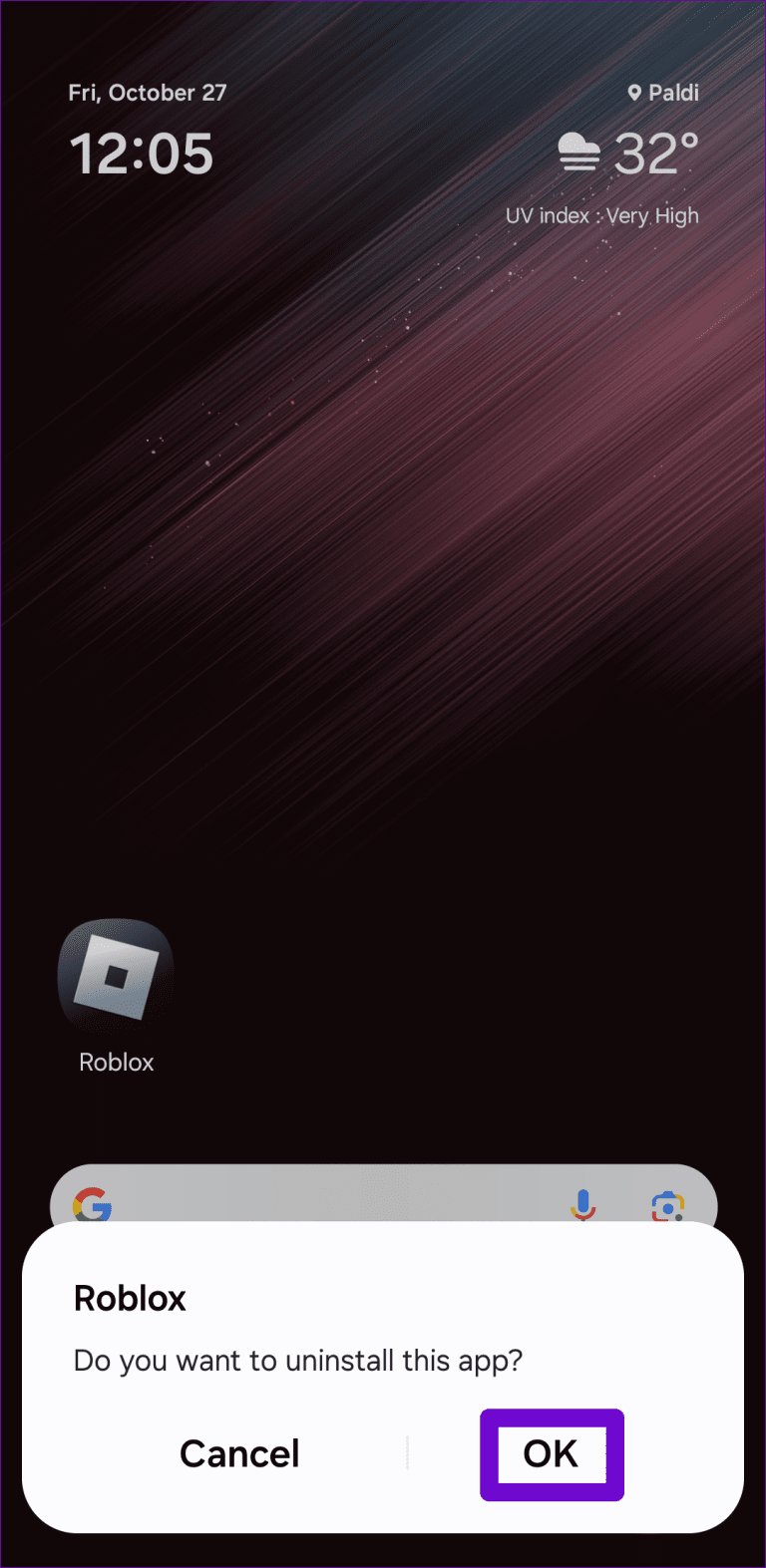
- Android: Go to Settings > Apps > Roblox > Uninstall.
- iOS: Press and hold the Roblox app icon on your home screen until it jiggles, then tap the "X" (older iOS) or "Remove App" > "Delete App" (newer iOS).
- Restart Your Device: After uninstalling, reboot your phone or tablet. This helps clear any remaining temporary system files or memory associations.
- Reinstall from the Official Store:
- Android: Open the Google Play Store, search for "Roblox", and tap "Install".
- iOS: Open the App Store, search for "Roblox", and tap the cloud icon or "Get" to reinstall.
- Log Back In: After the installation is complete, open Roblox and log in with your credentials. You might need to re-download some game assets, but your progress and Robux will be intact.
While it takes a little more time than other fixes, a full reinstall is a highly effective way to address deeply embedded app issues, helping you overcome stubborn black screen problems and get back to enjoying your games.
Can device storage or RAM issues cause a black screen?
Absolutely, insufficient device storage or a lack of available RAM (Random Access Memory) can significantly contribute to a Roblox mobile black screen. Roblox, especially with its increasingly complex experiences and high player counts, requires a certain amount of system resources to run smoothly. When your mobile device is running low on either storage for app assets or RAM to actively process the game, it struggles to load, often resulting in a stalled screen or, yes, a frustrating black screen. This is a common bottleneck for many gamers who use their devices for a multitude of apps and activities throughout the day.
Storage Space:
Roblox games, textures, and updates download data onto your device. If your phone or tablet is critically low on storage, it simply cannot download or write these necessary files, preventing the game from fully initializing. A device with less than 1-2 GB of free space can start experiencing performance issues across all apps, including Roblox.
To check and free up storage:
- Android: Go to Settings > Storage. You'll see a breakdown of what's using space. Uninstall old, unused apps, delete unnecessary photos/videos, or clear large app data (like from streaming services).
- iOS: Go to Settings > General > iPhone Storage. iOS provides recommendations for freeing up space and lists apps by size, allowing you to offload or delete large ones.
Aim to keep at least 3-5 GB of free storage for optimal performance, especially if you enjoy graphic-intensive games or frequently download new apps.
Available RAM:
RAM is where your device stores information that's actively being used by apps. Roblox demands a fair amount of RAM to load worlds, characters, and scripts. If too many other apps are running in the background, or your device simply has limited RAM, Roblox might not have enough resources to operate. This can cause the app to freeze, crash, or fail to load anything beyond a black screen.
To manage RAM:
- Close Background Apps: Regularly swipe away unused apps from your recent apps screen. While modern OS are good at managing RAM, actively closing apps ensures maximum resources for your primary game.
- Restart Your Device: As mentioned before, a full reboot effectively clears your device's RAM, giving you a fresh slate for Roblox.
- Avoid Live Wallpapers/Widgets: On Android, elaborate live wallpapers or numerous active widgets can consume background RAM. Consider simplifying your home screen setup if you're frequently experiencing performance issues.
Ensuring your device has ample storage and available RAM is fundamental to a smooth gaming experience, directly impacting Roblox's ability to load properly and avoid those dreaded black screens. It's about optimizing your mobile device for the demands of modern mobile gaming.
What if Roblox servers are down? How do I check?
Sometimes, the black screen on Roblox Mobile isn't a problem with your device or internet, but rather an issue on Roblox's end – specifically, their servers might be experiencing downtime or maintenance. This is a common occurrence for large online platforms, and knowing how to quickly check server status can save you a lot of troubleshooting time. For busy gamers, confirming a server outage immediately lets you know that the best "fix" is simply patience, allowing you to allocate your limited free time to other activities instead of fruitlessly debugging your device.
Here’s how to quickly determine if Roblox servers are down:
- Official Roblox Status Page: The most authoritative source is Roblox's own status page. You can typically find this by searching "Roblox Server Status" on Google or by checking their official support channels. This page will provide real-time updates on the operational status of various Roblox services, including game servers, website, and in-app purchases. If any component shows as "major outage" or "partial outage," then the black screen is likely due to their servers.
- Third-Party Status Websites: Websites like DownDetector are excellent community-driven resources. They gather reports from users experiencing issues and display a graph of outages. If you see a significant spike in "Roblox down" reports in your region, it's a strong indicator of a widespread problem. Just search "DownDetector Roblox" to quickly find it.
- Roblox's Social Media Channels: Roblox often communicates major outages or maintenance schedules via their official Twitter (X), Facebook, or other social media accounts. Check their recent posts for any announcements. This is often where they provide updates on when services are expected to be restored.
- Community Forums and Discord: Join Roblox-specific subreddits, forums, or Discord servers. If servers are down, you'll usually see a flurry of posts from other players reporting the same issue. This instant feedback from the gaming community can quickly confirm if the problem is widespread.
If you confirm that Roblox servers are indeed down, there's nothing you can do on your end but wait. The best course of action is to monitor the official channels for updates. Use this time to tackle other tasks, spend time with family, or try a different mobile game. This month's trends continue to show the importance of social gaming, and unfortunately, server issues can temporarily interrupt that connection for everyone.
Are graphic settings impacting my Roblox Mobile performance?
Yes, your graphic settings in Roblox Mobile can absolutely impact performance and, in extreme cases, even lead to a black screen, especially if your device is older or has limited processing power. Roblox offers a range of graphical options, from smooth, low-fidelity visuals to crisp, high-detail environments. Pushing these settings too high for your device's capabilities forces its CPU and GPU to work harder than they can manage, leading to overheating, lag, crashes, or a failure to render the game entirely – resulting in that frustrating black screen. This is a common balancing act for mobile gamers trying to optimize their experience on varying hardware.
Here’s how to check and adjust your Roblox graphic settings:
- Launch Roblox: Open the Roblox app on your mobile device. If you can get past the initial black screen to the main menu or into any game (even if it's struggling), you can access the settings.
- Access In-Game Menu: While in an experience (game), tap the Roblox icon (usually a circular icon with the Roblox logo) in the top-left corner of the screen. This will open the in-game menu.
- Navigate to Settings: In the menu, tap on "Settings".
- Adjust Graphics Mode:
- Look for the "Graphics Mode" option. It's usually set to "Automatic" by default, which attempts to balance performance and visual quality.
- Switch it to "Manual" to gain control over individual graphics quality levels.
- Lower Graphics Quality:
- Once in "Manual" mode, you'll see a "Graphics Quality" slider or similar options.
- Start by significantly lowering this setting. Drag the slider to the left or choose a lower quality preset.
- Test and Restart: Exit the settings, and if prompted, restart the experience or even the Roblox app. See if the game loads without a black screen and runs more smoothly. Gradually increase the graphics quality if performance improves, finding the sweet spot between visuals and stability for your specific device.
For gamers on a budget or using older smartphones, optimizing graphic settings is a powerful way to ensure a stable and enjoyable Roblox experience. It's a quick performance optimization trick that can make a huge difference in preventing black screens and general lag, allowing you to maximize fun without needing expensive hardware upgrades.
What advanced troubleshooting steps can I take for persistent black screens?
When the usual fixes for a Roblox Mobile black screen don't cut it, it's time to dig a bit deeper with advanced troubleshooting. These steps require a little more effort but can often resolve stubborn issues that stem from deeper software conflicts or device-specific problems. For serious gamers who value peak performance and hate downtime, these methods offer a more thorough approach to reclaiming your gameplay experience. It's about systematically eliminating possibilities until Roblox is running perfectly again.
- Check for Conflicting Apps: Some apps, particularly security software, ad blockers, or overlay apps, can inadvertently interfere with Roblox's processes. Try temporarily disabling any recently installed or background apps that might interact with other applications. For instance, certain screen recording tools have been known to cause conflicts.
- Verify Date and Time Settings: Incorrect date and time settings on your device can sometimes interfere with secure connections, preventing Roblox from authenticating with its servers. Ensure your device's date and time are set to "Automatic" and synchronized with network time. Go to your device's Settings > Date & Time to check.
- Reset Network Settings (Use with caution): This option resets all network-related settings (Wi-Fi passwords, Bluetooth pairings, VPN configurations) to their factory defaults. It can resolve deep-seated connectivity issues that might be causing the black screen.
- Android: Settings > System > Reset options > Reset Wi-Fi, mobile & Bluetooth.
- iOS: Settings > General > Transfer or Reset iPhone > Reset > Reset Network Settings.
Be aware you'll need to re-enter Wi-Fi passwords afterward.
- Factory Reset Your Device (Extreme Last Resort): This is the most drastic step and should only be considered if ALL other solutions have failed and you're still experiencing persistent black screens exclusively with Roblox (and other apps). A factory reset wipes your device clean and restores it to its original state.
- WARNING: BACK UP ALL YOUR DATA FIRST! Photos, contacts, apps, everything will be erased.
- This ensures no software conflicts, corrupted files, or settings are interfering. If Roblox still black screens after a factory reset, it strongly suggests a hardware issue with your device.
These advanced steps tackle more obscure issues that simpler fixes might miss. While some require more effort, they provide a comprehensive approach to troubleshoot and resolve persistent Roblox mobile black screen problems, ensuring you can get back to building, playing, and socializing in the vast Roblox universe.
How does balancing gaming with life impact troubleshooting?
Balancing gaming with demanding jobs, family responsibilities, and life, as many US gamers do, profoundly impacts how we approach troubleshooting issues like the Roblox mobile black screen. For this demographic, time is a precious commodity. We value relaxation and fun, and when technical problems arise, our priority shifts to quick, efficient solutions that minimize downtime. We're not looking for complex, time-consuming diagnostics; we need actionable advice that gets us back to our social play, skill-building, or stress relief without eating into our limited free hours. This often means preferring readily available fixes over extensive research or expensive hardware upgrades.
Gamers balancing life often gravitate towards solutions that are:
- Time-Efficient: A quick restart, clearing a cache, or a rapid check of server status is preferred over hours spent factory resetting devices or searching obscure forums.
- Budget-Friendly: Solutions that don't require purchasing new hardware or paid software are highly valued. Optimizing existing equipment and software is key.
- Reliable and Clear: We need straightforward, step-by-step instructions. Ambiguous advice leads to frustration and wasted effort, precisely what we want to avoid after a long day.
- Community-Supported: Quick answers from fellow gamers or trusted guides that cut through the technical jargon are gold. Social gaming isn't just about playing together; it's also about troubleshooting together.
The "how to fix black screen on Roblox mobile" query, therefore, resonates deeply with this audience's need for efficiency and practical solutions. Our gaming moments are often a reward, a way to connect, or a form of self-care. When those moments are interrupted, we seek immediate, reliable help to restore that balance. This guide, structured for clarity and speed, aims to meet those specific needs, recognizing that your time is valuable and your gaming experience matters.
Dealing with a black screen on Roblox Mobile can be incredibly frustrating, especially when you're looking forward to some well-deserved gaming time. However, as we've explored, most instances of this issue can be resolved with a systematic approach to troubleshooting. From simple app restarts and clearing caches to checking your internet connection, updating your software, and understanding when to reinstall, you now have a comprehensive toolkit to tackle this common problem. Remember, your gaming experience should be about relaxation and fun, not technical headaches.
The key takeaways are to always start with the easiest fixes, ensure your device and app are up-to-date, and verify your network stability. By following these steps, you'll minimize downtime and maximize your enjoyment of Roblox's vast and engaging universe. We understand the unique challenges faced by gamers who balance their passion with life's demands, and we hope this guide has empowered you to swiftly overcome these tech hurdles.
What's your biggest gaming challenge when it comes to mobile titles? Have you found a unique fix for the Roblox black screen? Comment below and share your insights with the community!
FAQ: Quick Answers for Roblox Mobile Black Screen
Q: Can a VPN cause Roblox black screen issues on mobile?
A: Yes, sometimes a Virtual Private Network (VPN) can interfere with Roblox's connectivity by routing your data through servers that might be slow or experience routing conflicts. Temporarily disabling your VPN can help diagnose if it's the cause.
Q: How often should I clear my Roblox cache on mobile?
A: It's good practice to clear your Roblox cache periodically, perhaps monthly, or immediately if you start experiencing performance issues, slow loading, or the black screen. It helps maintain app efficiency.
Q: Does simply restarting my mobile device really help with app issues?
A: Absolutely. A simple reboot is a surprisingly effective first step for many app-related problems, including the Roblox black screen. It refreshes your device's memory and closes background processes that might be causing conflicts.
Q: Is Roblox free to play on mobile devices?
A: Yes, Roblox is free to download and play on mobile devices. While it offers in-app purchases for Robux and premium content, the core platform and many experiences are accessible without cost.
Q: What are the most common causes for a black screen on Roblox Mobile?
A: The most frequent causes include an unstable internet connection, corrupted app cache, outdated Roblox app or device operating system, insufficient device storage or RAM, and sometimes, Roblox server outages.
Q: How can I prevent future black screens on Roblox Mobile?
A: To prevent future black screens, regularly update the Roblox app and your device's OS, ensure a stable internet connection, keep adequate free storage, and periodically clear the app cache.
Quick solutions for Roblox black screen Clear cache and data Check internet connection Update app and device Reinstall Roblox safely Monitor server status
35



How To Fix Black Screen On Roblox Mobile YouTube . How To Fix Roblox Mobile Black Screen On Infinix Phone YouTube . Roblox Black Screen Problem Android 2025 How To Fix Black Screen On . How To Fix Black Screen On Roblox Mobile 2025 Roblox Black Screen . How To Fix Black Screen On Roblox Mobile Fix Roblox Black Screen


How To Fix Roblox App Game Black Screen Problem Easy Quick Solution . How To Fix Black Screen On Roblox Mobile 2025 Solve Roblox Black . Roblox Black Screen Problem How To Fix Roblox Black Screen Roblox . How To FIX Black Screen On Roblox Mobile 2025 YouTube . How To Fix Roblox Mobile Black Screen How To Fix Black Screen When



How To Fix Black Screen On Roblox Mobile Roblox Black Screen Problem . How To Fix Black Screen On Roblox Mobile New Method2025 Roblox Black . How To Fix Black Screen Problem In Roblox 2025 How To Solve Black . How To Fix Black Screen Problem On Roblox Mobile Tutorial YouTube . How To Fix Black Screen On Roblox Mobile 2025 Roblox Black Screen



How To Fix Black Screen On Roblox Black Screen Issue Fix On Roblox . How To Fix Black Screen On Roblox Mobile NavThemes How To Fix Black Screen On Roblox Mobile . How To Fix Roblox App Black Screen Problem Final Solution YouTube . How To Fix Roblox Mobile Black Screen Problem Final Solution YouTube . How To Fix Black Screen Issue On Roblox Mobile Full Guede YouTube


How To Fix Black Screen Roblox Roblox Black Screen 2025 EXGB . How To Fix Roblox Black Screen After Launch Easiest Method Roblox . Tutorial On How To Fix Black Screen Problem On Roblox Mobile YouTube . How To Fix Black Screen On Roblox Mobile 2024 3 METHODS FULL GUIDE . How To Fix Black Screen On Roblox Mobile New Method Roblox Black Hqdefault



How To Fix Black Screen On Roblox Mobile Quick Easy Solutions YouTube . How To Fix Black Screen In Roblox Mobile Tutorial To Fix Roblox Black . 5 Fixes For Roblox Black Screen Issue Guiding Tech Confirm Uninstall Roblox App From Android 768x1573 . How To Fix Roblox Mobile Black Screen When Joining Game Final . Roblox Mobile How To Fix Black Screen Roblox Mobile Black Screen 1



How To Fix Black Screen On Roblox Mobile 2025 Roblox Black Screen . How To Fix Black Screen On Roblox Mobile Roblox Black Screen Solution Hqdefault . How To Fix Black Screen In Roblox Mobile Tutorial To Fix Roblox Black . How To Fix Roblox Mobile Stuck On Loading Screen Full Guide YouTube . How To Fix Black Screen On Roblox App YouTube