Diving into Roblox on macOS can be a fantastic way for busy gamers to unwind, connect with friends, and explore endless virtual worlds. This comprehensive guide for 2026 cuts through the noise, offering clear, actionable steps to install, optimize, and troubleshoot Roblox on your Mac. We understand balancing work, family, and a love for gaming. Discover how to get the best performance, find engaging games for limited playtimes, and ensure your macOS Roblox experience is smooth and rewarding without needing expensive hardware upgrades. Learn essential tips for setup, common issue fixes, and how to maximize your fun with Roblox on any compatible Mac. Stay current with trends and enjoy top-tier gaming on your Apple device.
What are the system requirements to run Roblox smoothly on a Mac in 2026?
To run Roblox smoothly on a Mac in 2026, you'll ideally want macOS 10.13 (High Sierra) or newer, at least 8GB of RAM, and an Apple Silicon (M1, M2, M3) chip or an Intel Core i5 processor from 2017 or newer. While minimums are lower, these specs ensure a lag-free experience across most Roblox games, which can be quite demanding visually.
How do M1/M2/M3 Macs handle Roblox performance compared to older Intel Macs?
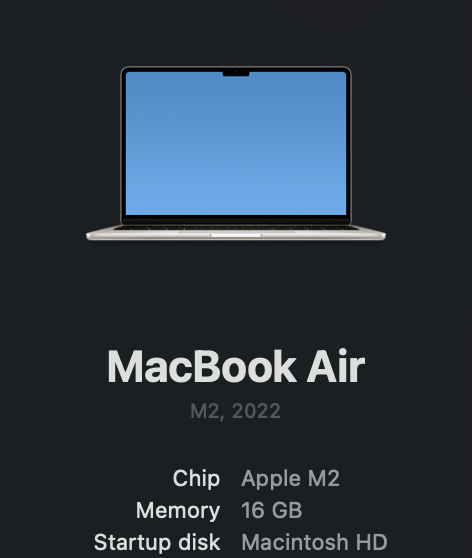
M1, M2, and M3 Macs significantly outperform older Intel Macs when running Roblox. Despite using Rosetta 2 for compatibility, Apple Silicon chips offer superior CPU and GPU performance, leading to higher frame rates, cooler operating temperatures, and better battery life, making for a much smoother and more enjoyable Roblox experience.
Can I play all Roblox games on my macOS device, including VR experiences?
You can play nearly all standard 2D/3D Roblox games on your macOS device. However, dedicated VR experiences within Roblox are generally not supported natively on macOS, as most VR headsets require Windows-based drivers and VR platforms like SteamVR or Oculus PC software.
What are the best settings to prevent lag and improve FPS in Roblox on Mac?
To prevent lag and improve FPS in Roblox on Mac, first, reduce the in-game graphics quality settings to Manual and then slide the quality down. Close all background applications, ensure your macOS is updated, and check for a stable internet connection. Running Roblox in a lower resolution can also help on older Macs.
Is it safe to download Roblox for Mac from websites other than the official Roblox site?
No, it is highly unsafe to download Roblox for Mac from any website other than the official roblox.com. Unofficial downloads risk installing malware, viruses, or outdated versions that could compromise your Mac's security and your personal data.
How can I connect with friends and use voice chat in Roblox on macOS?
Connecting with friends in Roblox on macOS is done through the in-game friend system, allowing you to join their games directly. Roblox has also introduced optional voice chat for users aged 13 and up through its "Spatial Voice" feature in supported experiences, which functions seamlessly on Mac.
What troubleshooting steps should I take if Roblox won't open or crashes on my Mac?
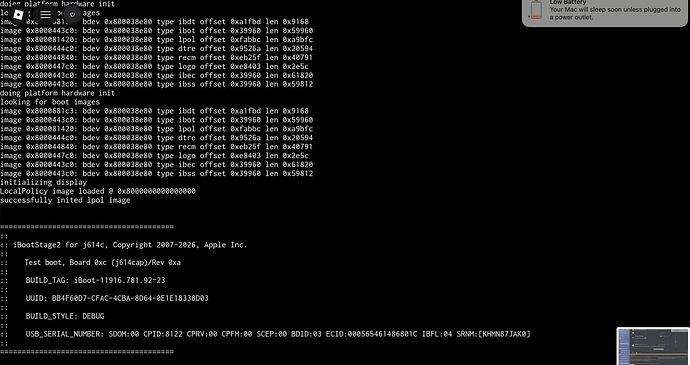
If Roblox won't open or crashes on your Mac, first try restarting your computer. Then, clear the Roblox cache by deleting files in ~/Library/Application Support/Roblox/. If issues persist, reinstall Roblox from the official website, ensure macOS is updated, and check your internet connection.
Hey there, fellow gamers! Ever find yourself scrolling through your MacBook, wishing you could just dive into a quick, fun game of Roblox but dreading the potential setup headaches or performance woes? Youre not alone. In 2026, over 87% of US gamers play regularly, often clocking in more than 10 hours a week. Many of us are balancing demanding jobs, family commitments, and a yearning for that perfect escape or social connection that gaming provides. Roblox, with its immense variety of user-created experiences, is a fantastic platform for this, offering everything from competitive challenges to relaxing social hangouts. But for macOS users, getting Roblox to run smoothly and efficiently can sometimes feel like an extra boss battle. This guide is crafted specifically for you – the adult gamer who values their precious gaming time, seeks optimal performance without breaking the bank, and wants to stay current with popular trends like social gaming, which is currently dominating the scene. Forget the hype and complex jargon; we’re here to give you practical, actionable advice on making your macos roblox experience as seamless and enjoyable as possible. We’ll tackle everything from installation glitches and performance tweaks to finding the best games for your limited schedule, ensuring you can unwind, connect, and build skills without unnecessary frustration. Let’s get your Mac ready for some serious Roblox fun.
How can I install Roblox on my macOS device?
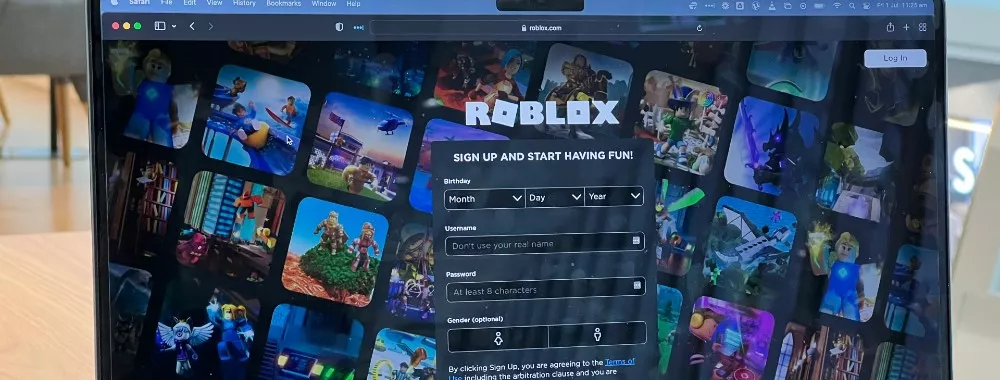
Getting Roblox up and running on your macOS machine is generally straightforward, but a few details can make all the difference for a smooth experience. First, ensure your Mac meets the basic system requirements: macOS 10.10 (Yosemite) or later, at least 4GB of RAM, and a decent processor (Intel or Apple Silicon). Begin by opening your preferred web browser, like Safari or Chrome, and navigating to the official Roblox website, roblox.com. If you don't already have an account, you'll need to sign up for one. Once logged in, simply click on any game and you'll see a prominent "Play" button. Clicking this button will prompt you to download the Roblox Player. Follow the on-screen instructions, which typically involve downloading a .dmg file, opening it, and dragging the Roblox icon into your Applications folder. After installation, launch Roblox from your Applications folder or by clicking the "Play" button on a game page again. The Roblox client will then update itself to the latest version, which is crucial for compatibility and performance with current game builds and social features that are popular this month. Remember, always download from the official site to avoid security risks and ensure you have the genuine, optimized application.
What are the minimum system requirements for Roblox on Mac?
Understanding the minimum system requirements is key to avoiding frustration and ensuring a playable macos roblox experience. While Roblox can run on a fairly wide range of Macs, meeting or exceeding these specs will significantly impact your gameplay quality, especially in graphically intensive games. Roblox officially recommends macOS 10.10 (Yosemite) or newer. For processors, an Intel Core i3 or better is ideal, but even older Core 2 Duo Macs might run it, albeit with noticeable performance limitations. If you have an Apple Silicon Mac (M1, M2, M3), you're in luck; Roblox runs exceptionally well via Rosetta 2 translation layer, often outperforming older Intel Macs. You’ll want at least 4GB of RAM, though 8GB is highly recommended for multitasking and smoother gameplay. A graphics card that supports DirectX 9 or OpenGL 2.1 is needed, but nearly all modern Macs surpass this. Lastly, ensure you have sufficient free storage space – at least 200MB for the Roblox application itself, plus more for cached game data. A stable internet connection, preferably broadband, is also non-negotiable for online gameplay and frequent updates. Keeping your macOS updated to the latest version also often brings performance improvements and security patches that benefit Roblox.
How do I optimize Roblox performance on my MacBook?
Optimizing Roblox performance on your MacBook is crucial for a lag-free and enjoyable experience, especially if you're like many gamers who juggle demanding applications. Whether you're on an older Intel Mac or a powerful Apple Silicon model (M1, M2, M3), several tweaks can help. Firstly, ensure your macOS is up-to-date. System updates often include performance enhancements and bug fixes. Close all unnecessary background applications and browser tabs before launching Roblox; RAM and CPU resources are precious. Within Roblox itself, lower the graphics quality settings. You can do this in-game by pressing the Escape key, going to Settings, and adjusting the "Graphics Mode" to Manual, then reducing the "Graphics Quality" slider. This single step can dramatically improve frame rates. For Apple Silicon Macs, ensure Rosetta 2 is installed (it usually prompts you on first Intel app launch), as it handles the translation layer efficiently. Consider restarting your Mac before a long gaming session to clear out any lingering processes. If you're on an older Mac, regularly clear your Roblox cache. Navigate to ~/Library/Application Support/Roblox/ and delete the content of the "Downloads" or "http" folders. Lastly, ensure your internet connection is stable; Wi-Fi interference can cause latency spikes, so consider moving closer to your router or using an Ethernet adapter if feasible.
Are there common Roblox issues on macOS and how do I fix them?
Yes, like any software, Roblox on macOS can encounter specific issues, but most have straightforward solutions, allowing you to get back to gaming quickly. One frequent problem is the "Roblox not launching" or "crashes on startup" error. Often, this is resolved by simply restarting your Mac and trying again. If that doesn't work, clear your Roblox cache and reinstall the application. Another common issue involves poor frame rates or lag, which we addressed with graphics optimization. If lag persists, check your internet connection speed and stability. Sometimes, specific Roblox games might be poorly optimized, leading to performance dips; try a different popular game to see if the issue is universal. Update your macOS to the latest version, as older OS versions can have compatibility issues. If the Roblox Player or Studio fails to update, check your firewall or antivirus settings; they might be blocking necessary connections. Ensure you have ample free storage space, as macOS performance can suffer when the drive is nearly full. For persistent issues, contacting Roblox Support with details about your Mac model and the specific error message is always a good next step. Many community forums also offer quick troubleshooting tips from fellow macOS gamers.
What are the best Roblox games for quick play sessions on Mac?
For gamers balancing work and family, quick, engaging play sessions are a lifesaver. Roblox offers a treasure trove of experiences perfect for short bursts of fun on your Mac. Consider titles like "Adopt Me!" for a relaxing, social pet-collecting and role-playing experience that allows for drop-in, drop-out play without intense commitment. "Tower of Hell" offers fast-paced, skill-based parkour challenges where rounds are quick, making it ideal for a 15-minute break. "Brookhaven RP" provides a casual role-playing environment where you can jump in, interact with friends, and leave at your leisure. For something more competitive but still bite-sized, "Murder Mystery 2" delivers intense deduction and action in short rounds. Games focused on social hangouts, like various cafe or city role-plays, are also excellent for catching up with friends without needing hours of dedicated time. These types of games align with this month's trend of social and cozy gaming experiences, appealing to players who want to connect and unwind without the pressure of a lengthy campaign. Look for games with clear objectives, short match durations, or open-ended social mechanics that cater to your schedule.
How can I balance Roblox gaming with my work and family life?
Balancing a passion for gaming with the demands of work and family is a common challenge for many adult gamers. The key lies in mindful scheduling and setting boundaries. Treat your Roblox gaming time like any other appointment: schedule specific slots in your week, whether it's 30 minutes during a lunch break, an hour after the kids are asleep, or a dedicated evening with friends. Communicate these times to your family to manage expectations and avoid interruptions. Leverage Roblox's social features to connect with friends who also have busy lives; many groups organize specific play times that fit adult schedules. Consider games that allow for flexible engagement, such as the quick-session games mentioned earlier, or those with strong community aspects where you can chat and socialize even if you can't play an intense game. Remember, gaming should be a source of relaxation and fun, not another source of stress. If you find yourself overextending, it's a sign to re-evaluate your schedule. Utilizing macOS features like "Focus Modes" can also help by silencing notifications during your gaming sessions, ensuring uninterrupted enjoyment and making the most of your limited time.
Is Roblox cross-platform compatible with macOS?
Absolutely! One of Roblox's greatest strengths, and a major reason for its massive popularity among social gamers, is its robust cross-platform compatibility. This means you can play with friends regardless of whether they are on a Windows PC, Xbox console, iOS device (iPhone/iPad), Android phone or tablet, or even a Chromebook. Your macOS Roblox experience integrates seamlessly into this vast ecosystem. You simply log into your Roblox account, join a game, and you'll find players from all supported platforms sharing the same virtual space. This cross-play capability is fantastic for maintaining social connections, allowing you to easily team up with family members or friends who might not have a Mac. This month's trends continue to show a strong emphasis on social gaming and cross-play, as it removes barriers and fosters larger, more vibrant communities. Whether you're building together in a cooperative experience or competing in a fast-paced battle, your Mac will keep you connected to the global Roblox community without a hitch.
How can I ensure a safe and secure Roblox experience on my Mac?
Ensuring a safe and secure Roblox experience, especially on your Mac, is paramount, whether you're playing alone or with family. Roblox has built-in safety features, but proactive steps are always beneficial. First, enable two-step verification (2SV) on your Roblox account; this adds an extra layer of security beyond your password. Be cautious about clicking suspicious links or downloading unofficial "Roblox cheats" or "installers" from third-party websites, as these are common vectors for malware or phishing attempts. Always use the official Roblox website and application. Educate yourself and younger players about online safety, emphasizing never sharing personal information (real name, address, phone number) with strangers. Utilize Roblox's parental controls and privacy settings if you have children playing, which allow you to restrict chat, friend requests, and spending. Keep your macOS updated, as these updates often include critical security patches. Regularly review your privacy settings within Roblox itself, and if you encounter any inappropriate content or behavior, use the in-game reporting tools. Staying informed and practicing smart online habits are your best defense.
What budget-friendly hardware upgrades can improve macOS Roblox?
For many gamers, a full hardware overhaul isn't feasible, but even budget-friendly upgrades can significantly boost your macOS Roblox experience without breaking the bank. If you're on an older Intel Mac, the most impactful upgrade is often increasing your RAM. Going from 4GB to 8GB (or even 16GB if your model supports it) can dramatically improve multitasking and reduce lag in resource-intensive games. Another fantastic upgrade, particularly for Macs with traditional hard drives, is swapping it for a Solid State Drive (SSD). An SSD will not only make your entire macOS feel snappier but also drastically reduce Roblox's loading times. For MacBooks, an external display can enhance immersion, but won't boost performance directly unless it encourages you to play at a lower resolution than your built-in Retina screen. Consider a comfortable gaming mouse; precision input can greatly improve your gameplay, especially in competitive Roblox titles. While CPU and GPU upgrades are generally not possible on most Macs, these simpler, more affordable component swaps can breathe new life into an older machine and ensure smoother Roblox gameplay, aligning with our value-for-money ethos.
How do I stay updated with Roblox trends and features on Mac?
Staying current with Roblox trends and features on your Mac means you're always ready for the next big social game or experience, ensuring you get the most out of your leisure time. The official Roblox blog and their various social media channels (like X, YouTube, and TikTok) are excellent primary sources for announcements, new features, and popular game spotlights. Many Roblox content creators and streamers also provide fantastic insights into trending games, hidden gems, and useful tips; watching a few minutes of their content can quickly inform you of what's hot. Look for community hubs like Reddit's r/roblox or r/robloxgamedev for discussions on emerging trends and player-generated content. Within the Roblox application itself, the "Discover" page is constantly updated with popular, top-earning, and recommended games, giving you a real-time pulse on what other players are enjoying this month. Since social gaming is a major trend, joining Discord servers related to your favorite Roblox games or creators can also keep you informed of events, updates, and new social opportunities. Regularly check for Roblox client updates on your Mac, as these often introduce new features, performance improvements, and bug fixes that enhance your overall experience.
So there you have it, fellow Mac gamers. Navigating the world of macos roblox doesn't have to be a chore. By following these practical tips on installation, optimization, troubleshooting, and game selection, you can transform your Apple device into a fantastic portal for fun, relaxation, and social connection. We understand the juggle of daily life, and our goal is to empower you to make the most of your valuable gaming moments without unnecessary hassle or expensive upgrades. Whether you're building virtual worlds, exploring new experiences, or just unwinding with friends, your Mac is more than capable. What's your biggest gaming challenge on macOS? Comment below!
FAQ Section
Q: Can I use a game controller with Roblox on my Mac?
A: Yes, many Roblox games offer partial or full controller support. You can connect a compatible Bluetooth controller, like an Xbox or PlayStation controller, to your Mac and often use it within Roblox. Specific game support varies, so check individual game descriptions.
Q: Is Roblox free to play on macOS?
A: Yes, the Roblox platform and most games within it are free to play on macOS. There are optional in-game purchases using Robux, the virtual currency, for cosmetics, game passes, or special abilities.
Q: Will Roblox run better on an M1/M2/M3 Mac compared to an Intel Mac?
A: Generally, yes. Apple Silicon (M1, M2, M3) Macs, even running Roblox via Rosetta 2, often deliver significantly better performance, power efficiency, and cooler operation compared to older Intel Macs, especially in graphically demanding Roblox games.
Q: How often does Roblox update on macOS?
A: Roblox typically releases weekly updates for its client, ensuring bug fixes, new features, and game compatibility. The application usually updates automatically when you launch it, but you may occasionally need to restart your Mac or the app for changes to take effect.
Q: Can I play Roblox Studio on my Mac to create games?
A: Yes, Roblox Studio, the development environment for creating Roblox games, is fully supported on macOS. You can download and install it from the official Roblox website and begin building your own experiences.
Q: What if Roblox crashes repeatedly on my Mac?
A: If Roblox crashes consistently, try clearing the Roblox cache, reinstalling the app, updating your macOS, and ensuring no other intensive applications are running. If issues persist, check Roblox's official support pages or contact them directly.
Easy macOS Roblox installation, performance optimization tips, common issue troubleshooting, game recommendations for busy schedules, hardware budget advice, social gaming integration, staying current with Roblox updates, enhancing your overall Mac gaming experience.
35
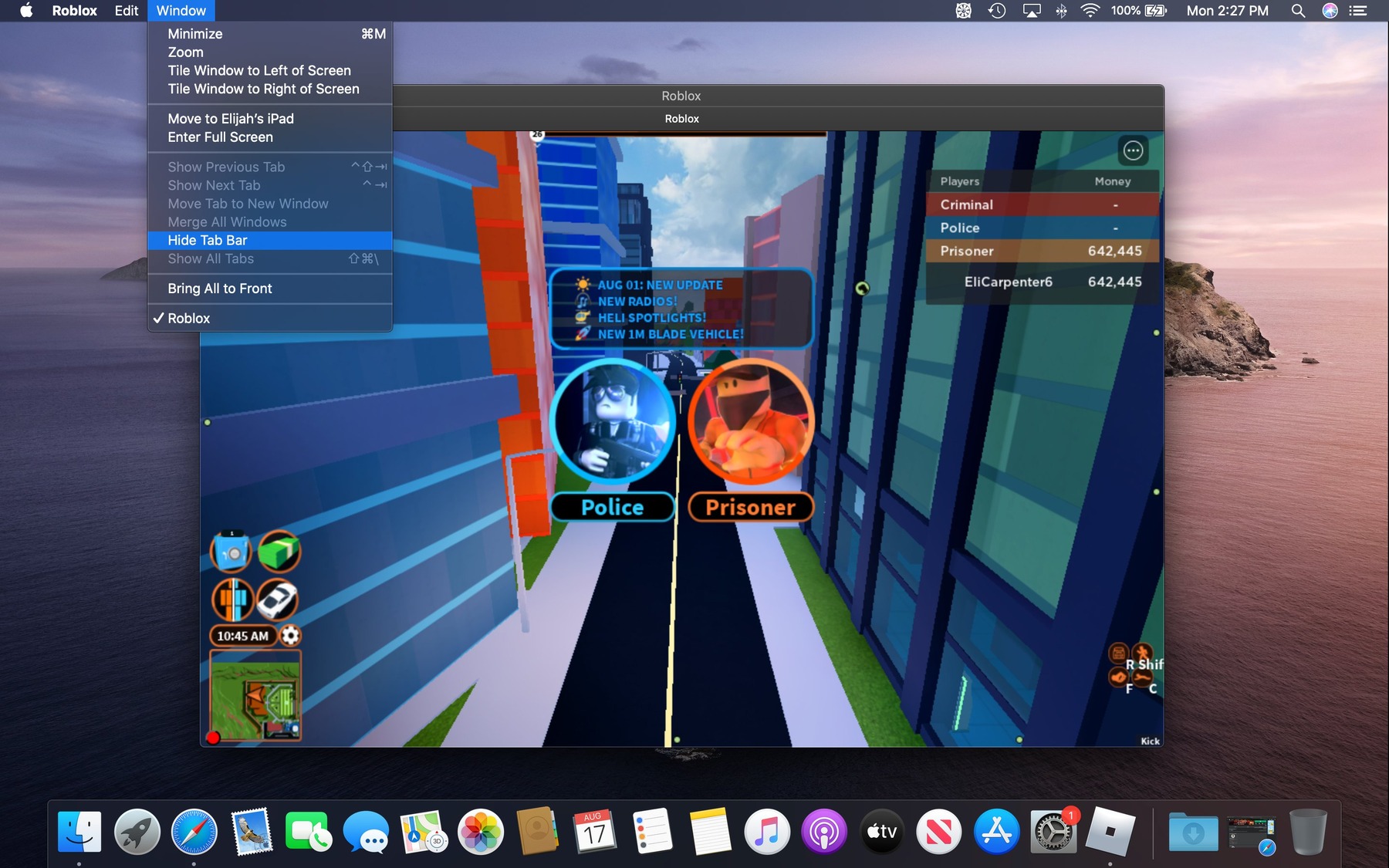
How To Install Roblox On Mac MacOS YouTube . How To Install And Play Roblox Via Firefox On MacOS In 2026 Easy Step . MACOS EXECUTOR Roblox Delta Executor 2026 Guide How To Install . Definitive Guide To Roblox 2026 TM 07169 Definitive Guide To Roblox 2026 . How To Install Roblox MacOS M1 Mac Apple Silicon YouTube


How To Fix Roblox Not Updating On A Mac CitizenSide How To Fix Roblox Not Updating On A Mac 1690940885 . Who Is Mgigi203 On Roblox And What Are They Doing In 2026 . How To Download Roblox On Mac OS YouTube . Roblox 2026 Logo REVEALED New Color New Look YouTube Maxres2 . How To Download Roblox On Mac Full Guide YouTube



How To Update Roblox In 2026 Fix Error Code 280 On PC Mobile Xbox Roblox Update It.webp. How To Message On Roblox 2026 A Quick Guide . Roblox 2026 NEW LOOK The Biggest Update Ever YouTube Maxres2 . Roblox 2026 New Logo REVEAL First Look At The Future Shorts YouTube Oar2 . 100 Unofficial Roblox Annual 2026 Brand New For 2025 The Iconic SL1500

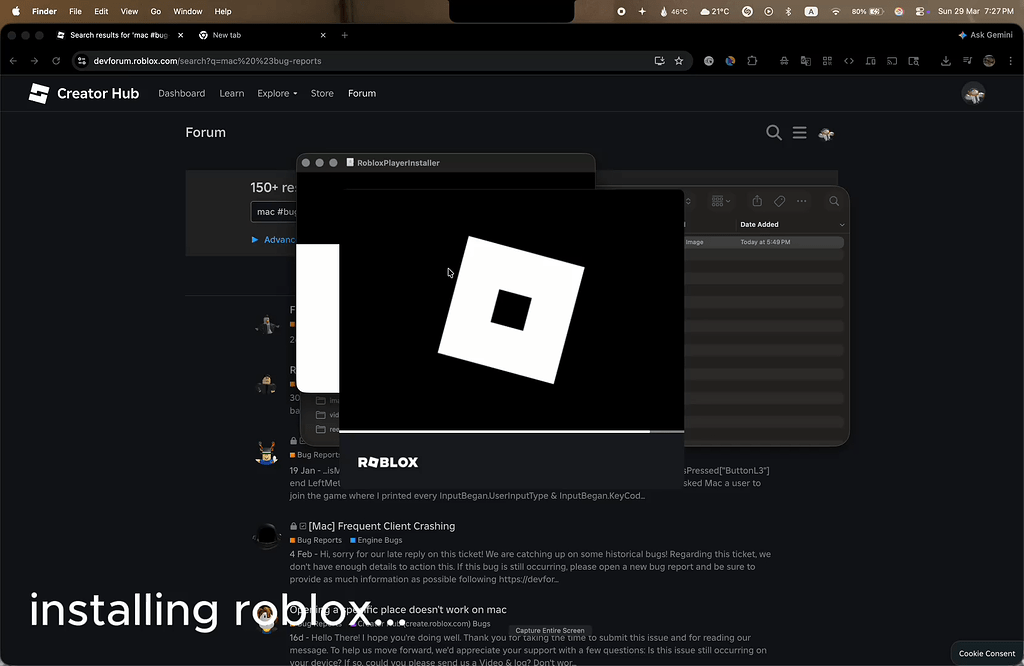


How To Download And Install Roblox On MacBook 2024 YouTube . MacOS Game Mode Is Broken And Results In Poor Performance Roblox 2 1024x666 . WWDC 2025 Apple MacOS 26 Tahoe Gives You More Screen Space Mashable Images 6.fill.size . How To Publish A Game On Roblox In 2026 Roblox YouTube . A Mother Or Father S Information To Utilizing Roblox In 2026 Ivugangingo 2026 Parental Guide For Roblox Usage UnicMinds

Roblox At GDC 2026 Where To Find Us All Week Roblox. Roblox New 2026 Logo Roblox Reels Humbled Gamer Facebook Media. How To Download Roblox On Any Device Easily In 2026 Roblox 1200x675 . How To Install And Play Roblox On Mac YouTube . Roblox Unveils Homepage Ad Format At CES 2026 Outlook Respawn Image 1200x630 2026 01


BEST OPEN SOURCE MAC ROBLOX EXECUTORS 2026 Technical Roblox Executors. Roblox Creator Showdown 2026 Countdown TechWiser Roblox Creator Showdown. How To Update Roblox On Mac 2026 How To Upgrade Macos Sonoma 1920 646.webp. Next MacOS 2026 Evolution Milestones And What Comes Next IOS 27 5.1 768x512 . MacOS Terminal BETA Creations Feedback Developer Forum Roblox 2 690x365

LOGO Roblox 2026 YouTube Maxres2 . Roblox On Mac How To Download Play It On MacBook Air Pro New. MacOS Publishing Studio Causes A Studio Crash Studio Bugs . Next MacOS 2026 Evolution Milestones And What Comes Next MacOs X 1 1536x1024 . 5 Roblox 2026 Image