Unlock the secrets to optimizing your Grand Theft Auto V visual experience with our comprehensive GTA 5 MSAA guide. For many gamers, particularly those balancing busy lives with their passion for interactive entertainment, finding the sweet spot between stunning graphics and smooth performance is crucial. This article delves into Multisample Anti-Aliasing MSAA in GTA 5 explaining what it is how it works and its impact on your gameplay. We understand that gamers today value every frame and every pixel especially when playing beloved titles like GTA V which continues to draw massive attention even years after its release. Learn how to eliminate those jagged edges that distract from the immersive world of Los Santos without sacrificing your frame rate or causing frustrating stuttering. Whether you are rocking a budget-friendly setup or a high-end rig our expert advice will help you fine-tune your GTA 5 MSAA settings to achieve the best possible visuals and performance for your specific hardware. Discover practical tips tricks and alternatives to MSAA ensuring your gaming sessions are as enjoyable and visually pleasing as possible. Stay current with optimization strategies that enhance your playtime providing both relaxation and skill-building opportunities without the hassle of technical roadblocks.
What exactly is MSAA and why should GTA 5 players care?
MSAA, or Multisample Anti-Aliasing, is a graphics technique in GTA 5 that smooths out jagged, stair-step edges on objects. Gamers should care because it dramatically improves visual quality, making the world of Los Santos look far more realistic and immersive by eliminating distracting pixelated lines, enhancing the overall enjoyment of the game.
How do I find the MSAA settings in GTA 5 to adjust them?
To adjust MSAA in GTA 5, launch the game and go to 'Settings' from the main menu. Then select 'Graphics'. Scroll down through the options, and you will find 'MSAA' listed with various levels like 'Off', '2x', '4x', or '8x'. Choose your preferred setting and apply the changes.
What's the performance impact of MSAA in GTA 5 on mid-range PCs?
On mid-range PCs, MSAA has a significant performance impact in GTA 5. Even 2x MSAA can cause a noticeable drop in FPS, while 4x or 8x MSAA often makes the game unplayable, leading to stuttering and low frame rates. It's often the most demanding graphics setting for FPS.
Are there alternatives to MSAA that offer better performance in GTA 5?
Yes, GTA 5 offers FXAA and TXAA as alternatives. FXAA provides basic edge smoothing with minimal performance cost but can introduce blur. TXAA, available for Nvidia GPUs, offers better quality than FXAA with a moderate performance hit, also reducing shimmering. Both are less demanding than MSAA.
Which MSAA level (2x, 4x, 8x) is recommended for a balanced experience in GTA 5?
For a balanced experience in GTA 5, if your PC can handle it, 2x MSAA is often recommended. It offers a noticeable visual upgrade over no anti-aliasing without the drastic performance dip of 4x or 8x MSAA, which are typically only suitable for high-end gaming rigs.
Why might MSAA cause frame drops or stuttering in GTA 5?
MSAA causes frame drops and stuttering in GTA 5 because it's a very resource-intensive process. Your graphics card has to render multiple samples for each pixel on object edges, significantly increasing the workload. Higher MSAA levels demand exponentially more GPU power and VRAM, leading to performance bottlenecks if your hardware isn't powerful enough.
Does using MSAA really make GTA 5 look that much better on my monitor?
Yes, for most players, using MSAA significantly improves how GTA 5 looks on their monitor. It drastically reduces jagged edges, especially on diagonal lines and curves, resulting in a much smoother, cleaner, and more visually appealing image. The difference is particularly noticeable on larger screens or at lower resolutions where jaggies are more prominent.
Hey fellow gamers! Ever jumped into Los Santos in Grand Theft Auto V, only to notice those pesky jagged edges on cars, buildings, or even character models? You know, the ones that just pull you right out of the immersion, making a beautiful open world look a bit… rough? You are not alone. Many of us, especially the roughly 60% of US adults who game regularly and average over 10 hours a week, want our gaming sessions to be a smooth, visually stunning escape, not a pixelated headache. We balance jobs, families, and life, so when we finally get that precious gaming time, we want it to be perfect, or at least as close as our hardware allows. This guide is all about helping you fix that common visual distraction using a powerful setting known as MSAA, or Multisample Anti-Aliasing, in GTA 5.
GTA 5, despite its age, remains incredibly popular, with millions still exploring its vast world. Keeping it looking fresh and running well is a common challenge, especially with newer titles constantly pushing visual boundaries. We are here to cut through the hype and provide practical, no-nonsense solutions. This article will break down exactly what GTA 5 MSAA is, how it impacts your game, and most importantly, how to optimize it for your specific PC setup. Get ready to enhance your GTA V experience, boost those graphics, and enjoy a much cleaner, smoother Los Santos without unwanted performance drops. Let us dive in and make those graphics sing!
What is MSAA in GTA 5 and how does it work?
MSAA, or Multisample Anti-Aliasing, is a technique designed to reduce 'jaggies' or 'stair-stepping' artifacts that appear on the edges of objects in 3D games like GTA 5. These jaggies are a result of pixels being too large to accurately represent diagonal or curved lines. When you enable MSAA, your graphics card renders multiple samples of each pixel on the edges of polygons. Instead of just one color sample per pixel, it takes several, then averages them out to create a smoother, more natural transition between colors and textures. This process effectively blurs the sharp, pixelated edges, making them appear much cleaner to the human eye. It is like taking a higher-resolution photo of an edge and then downscaling it, but only for the edges themselves, which is more efficient than rendering the entire scene at a super high resolution.
Why is MSAA important for GTA 5 graphics quality?
For a game as visually detailed and sprawling as Grand Theft Auto V, anti-aliasing, and specifically MSAA, is crucial for immersion. Without it, the vast cityscapes, intricate vehicle models, and character details can look noticeably pixelated, especially on larger monitors or at higher resolutions. Jagged edges can be incredibly distracting, breaking the sense of realism the game strives for. MSAA significantly enhances the visual fidelity by smoothing out these rough edges, leading to a much more polished and realistic image. For many gamers, a clean, crisp visual experience is paramount for enjoying the narrative and exploring the world. It contributes significantly to the overall aesthetic appeal, making Los Santos feel even more vibrant and alive.
How does MSAA impact GTA 5 performance and FPS?
While MSAA delivers undeniable visual improvements, it comes at a significant performance cost. Rendering multiple samples per pixel requires substantial graphics processing power. The higher the MSAA level (e.g., 2x, 4x, 8x), the more samples are taken, and thus, the greater the strain on your GPU. This can lead to a noticeable drop in your frames per second (FPS), especially on mid-range or older hardware. For example, switching from no MSAA to 4x MSAA can halve your FPS on some systems. This performance hit is a primary reason why many gamers, particularly those who prioritize smooth gameplay over absolute visual perfection, often look for alternative anti-aliasing methods or carefully balance their MSAA settings. It is a trade-off: improved visual smoothness versus maintaining a high frame rate for responsive control.
What are the best MSAA settings for GTA 5 on different hardware?
The 'best' MSAA setting is highly dependent on your graphics card (GPU), processor (CPU), and RAM. There is no one-size-fits-all answer, but here is a general guideline:
High-End PCs (e.g., RTX 3070/4070 or better): You can likely run 4x MSAA or even 8x MSAA with minimal FPS loss, especially at 1080p or 1440p. These powerful GPUs have enough headroom to handle the extra processing. Always monitor your FPS to ensure you stay above your desired target (e.g., 60 FPS).
Mid-Range PCs (e.g., GTX 1660 Super/RTX 2060/RX 580): 2x MSAA is often the sweet spot. It provides a noticeable improvement over no anti-aliasing without crippling your frame rate. You might need to dial back other demanding settings like shadows or grass quality to maintain smooth performance.
Entry-Level/Older PCs (e.g., GTX 1050 Ti/RX 570 or older): MSAA is generally not recommended. The performance hit is usually too severe, making the game unplayable. In these cases, consider using FXAA or disabling anti-aliasing entirely and relying on resolution scaling or sharpening filters from your GPU control panel.
Always test different settings in various areas of the game (busy city streets, open countryside) to get a realistic sense of performance.
How do I enable or adjust MSAA in GTA 5?
Adjusting MSAA in GTA 5 is straightforward:
Launch Grand Theft Auto V.
From the main menu, navigate to 'Settings'.
Select 'Graphics'.
Scroll down until you find the 'MSAA' option. It will usually be listed with options like 'Off', '2x', '4x', '8x'.
Choose your desired level. Remember, higher numbers mean better visual quality but lower performance.
Apply the settings. The game may require a restart or a brief loading screen for the changes to take full effect.
It is always a good idea to make one change at a time and then test the game to understand the impact of each setting.
Are there alternatives to MSAA for anti-aliasing in GTA 5?
Absolutely! GTA 5 offers other anti-aliasing options that can be more performance-friendly than MSAA:
FXAA (Fast Approximate Anti-Aliasing): This is a post-processing effect that applies a blur filter to the entire image. It is extremely lightweight on performance but can make the image appear softer or slightly blurry. It is a good option for low-end PCs or if you prioritize FPS above all else.
TXAA (Temporal Anti-Aliasing): This option is specific to Nvidia GPUs and works by combining samples from current and previous frames to smooth edges. It provides excellent visual quality and also helps reduce shimmering on distant objects, but it can introduce a slight blur and has a moderate performance cost, less than MSAA but more than FXAA.
Nvidia DSR/AMD VSR (Dynamic Super Resolution/Virtual Super Resolution): These are driver-level features that allow your GPU to render the game at a higher resolution than your monitor supports, and then downscale it. This effectively provides extremely high-quality anti-aliasing by brute force. The performance cost is very high, but the visual fidelity is outstanding. Often combined with FXAA or no in-game AA.
Sharpening Filters (Nvidia Freestyle/AMD Radeon Image Sharpening): While not anti-aliasing themselves, these can be used to counteract the slight blur introduced by FXAA or TXAA, making the image appear crisper. They have a very minimal performance impact.
Experimenting with these options is key to finding what works best for your setup and personal preference.
When should I use MSAA versus other anti-aliasing options?
Deciding when to use MSAA versus other anti-aliasing options in GTA 5 boils down to your hardware capabilities and visual priorities.
Use MSAA if: You have a powerful, modern GPU with plenty of VRAM (e.g., RTX 30-series, RX 6000-series or newer) and you want the absolute cleanest, sharpest edge smoothing without the blur typically associated with post-processing AA. You are willing to sacrifice some FPS for superior visual fidelity, especially at 1080p or 1440p resolutions where jaggies are more pronounced.
Use FXAA if: You are on an older or lower-end PC, or if you need every single frame rate you can get. FXAA provides a quick, lightweight solution to reduce jaggies, but be aware of the slight blur it introduces.
Use TXAA if: You have an Nvidia GPU (GTX 600 series or newer) and want excellent edge smoothing with less performance impact than MSAA, plus reduced shimmering on distant objects. It offers a good balance, though some users dislike its subtle blurring effect.
Consider DSR/VSR if: You have a very high-end system and want the ultimate image quality, effectively using super-sampling for anti-aliasing. This is typically combined with disabling in-game AA for maximum clarity and very high performance cost.
It is all about finding your personal balance between performance and visual quality.
How can I balance GTA 5 visuals and performance with MSAA?
Achieving that perfect balance between stunning visuals and smooth performance with MSAA in GTA 5 is a common goal for many gamers, especially those who want to unwind without technical frustrations. Here is a strategy:
Start with No MSAA: Get a baseline FPS. Then, enable 2x MSAA and check your FPS. If it is acceptable (e.g., above 60 FPS consistently), try 4x. Stop at the point where performance drops below your comfort zone.
Adjust Other Settings: If MSAA is too demanding, consider lowering other resource-intensive settings first. This includes Grass Quality, Shadow Quality, Reflection Quality, and Post FX. These often have a bigger impact on FPS than you might think.
Lower Resolution: If all else fails, slightly lowering your display resolution can provide a significant FPS boost, allowing you to use higher MSAA. Or consider using DSR/VSR to render at a higher resolution than your monitor, then downscale, which acts as excellent anti-aliasing.
Hardware Upgrade (Budget-Friendly): If you are constantly struggling, a modest GPU upgrade (e.g., to a used GTX 1660 Super or an RTX 2060) can offer substantial gains for budget-conscious gamers. Monitor market trends for good deals.
Remember, consistent FPS is often more important for an enjoyable experience than slightly sharper edges.
Does MSAA affect online play in GTA Online?
Yes, MSAA affects GTA Online exactly the same way it affects the single-player campaign. Since GTA Online uses the same game engine and graphics settings, enabling MSAA will improve the visual smoothness of edges in the online world, but it will also incur the same performance penalty. In GTA Online, maintaining a stable and high frame rate is arguably even more critical than in single-player, especially during intense firefights or races. A sudden FPS drop due to demanding MSAA settings could put you at a disadvantage against other players. Many players opt for lower MSAA settings, or even FXAA, in GTA Online to prioritize competitive performance and responsiveness over absolute visual fidelity. It is a practical choice for social gaming where every millisecond counts.
What modern GPUs handle GTA 5 MSAA best?
Modern GPUs from both Nvidia and AMD are incredibly capable of handling GTA 5's MSAA, especially if you are targeting 1080p or 1440p resolutions. Generally, any mid-to-high-tier GPU from the last few generations will perform well. For example:
Nvidia: RTX 3060, RTX 3070, RTX 3080, RTX 4060, RTX 4070, RTX 4080, RTX 4090. Even older cards like the GTX 1080 Ti or RTX 2070 can handle 4x MSAA comfortably at 1080p.
AMD: RX 6700 XT, RX 6800, RX 6900 XT, RX 7700 XT, RX 7800 XT, RX 7900 XT/XTX. AMD's FSR (FidelityFX Super Resolution) can also be used as a performance booster to allow for higher in-game settings like MSAA.
These GPUs offer the raw processing power and abundant VRAM necessary to render the multiple samples required by MSAA without a significant hit to your frame rate, allowing you to enjoy GTA 5 at its visual peak.
Troubleshooting MSAA issues in GTA 5.
Sometimes, enabling MSAA can lead to unexpected issues. Here are some common problems and solutions:
Severe FPS Drops/Stuttering: This is the most common issue. Your GPU simply cannot handle the MSAA level. Reduce MSAA (e.g., from 4x to 2x or turn it off). Lower other demanding settings like Grass Quality, Shadows, or Water Quality. Ensure your display drivers are up-to-date.
Visual Glitches/Artifacts: If you see strange lines, flickering, or corrupt textures after enabling MSAA, first ensure your graphics drivers are current. If the issue persists, try disabling MSAA and using an alternative like TXAA or FXAA. Sometimes, older game engines can have quirks with newer driver optimizations.
Game Crashing: While rare for just MSAA, combining very high settings on a system that is already struggling can lead to instability. Reduce MSAA and other demanding settings. Check your VRAM usage in a tool like MSI Afterburner; if it is maxed out, lower texture quality or resolution.
MSAA Not Appearing to Work: Ensure your game settings are actually saving. After changing MSAA, hit 'Apply' and confirm. Sometimes, specific display modes (e.g., windowed borderless vs. fullscreen) can affect how anti-aliasing is rendered, so experiment with those.
Always restart your game after significant graphics changes to ensure they are fully applied.
As we wrap up our deep dive into GTA 5 MSAA, remember that optimizing your game is a personal journey. Whether you are chasing every frame for competitive edge or simply want to soak in the beauty of Los Santos without distractions, understanding options like MSAA is key. US gamers, averaging around 36 years old, are savvy; we want value, performance, and fun without the hype. We have seen how MSAA can dramatically improve visual quality by smoothing those jagged edges, but also how it demands significant GPU power. Balancing this with alternatives like FXAA or TXAA, and adjusting other graphics settings, allows you to tailor the experience to your specific hardware and preferences. Don't let technical hurdles stand between you and your precious gaming relaxation time.
What's your biggest gaming challenge when it comes to balancing visuals and performance? Comment below and share your GTA 5 MSAA tips!
FAQ Section
Is MSAA better than FXAA for GTA 5? MSAA generally provides superior image quality by smoothing edges more effectively without blurring textures, making it visually 'better' for sharpness. However, FXAA has a much lower performance impact, making it 'better' for low-end PCs or for maximizing FPS.
Can I use MSAA with Ray Tracing in GTA 5? GTA 5 does not natively support Ray Tracing. While mods exist, combining MSAA with such heavy graphical enhancements would be extremely demanding on even the most powerful hardware and is not officially supported.
Does disabling MSAA significantly boost FPS in GTA 5? Yes, disabling MSAA or reducing its level can provide a very significant FPS boost, especially on mid-range or older GPUs, as it alleviates a substantial processing load from your graphics card.
What is MSAA 2x, 4x, 8x in GTA 5 settings? These numbers indicate the number of samples taken per pixel on polygon edges for anti-aliasing. 2x takes two samples, 4x takes four, and 8x takes eight. Higher numbers mean smoother edges but higher performance cost.
Why does GTA 5 look blurry with MSAA enabled sometimes? MSAA itself is designed to sharpen edges, not blur. If your game looks blurry with MSAA enabled, it is more likely due to other settings like FXAA being active simultaneously, or a lower resolution scaling, or even motion blur settings.
Is MSAA only for PC version of GTA 5? Yes, MSAA as a configurable graphics option is primarily found in the PC version of GTA 5. Console versions use their own optimized anti-aliasing solutions that are typically not user-adjustable.
GTA 5 MSAA explained anti-aliasing performance impact optimization tips best settings alternatives to MSAA troubleshooting jagged edges improved visuals smooth gameplay.
35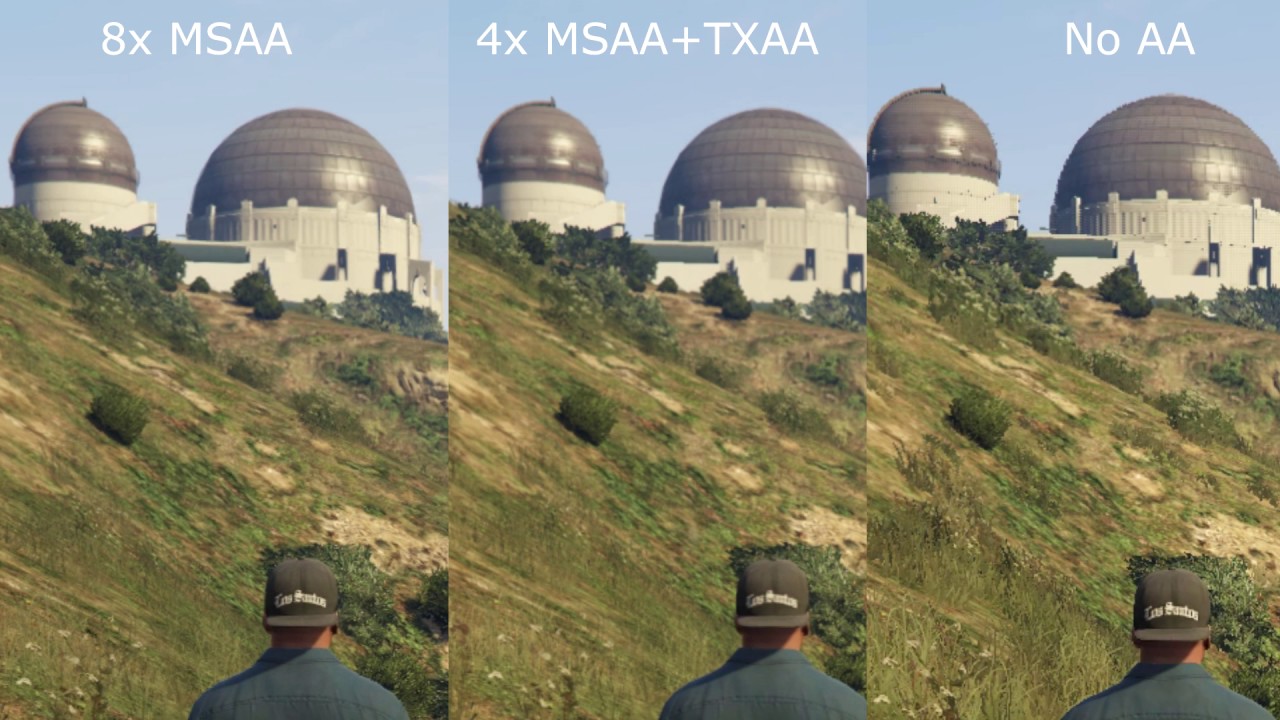


Home Tahiri Zakaria . GTA 5 MSAA COMPARISON Anti Aliasing TEST 2024 YouTube . Grand Theft Auto V Anti Aliasing Comparison 1440p YouTube . GTA V MSAA Off Vs X2 Vs X4 Vs X8 Benchmark FPS Test GTX 1060 6GB . GTA V GTX 980 Ti 1080P ULTRA 2 4 8X MSAA Benchmark Test YouTube


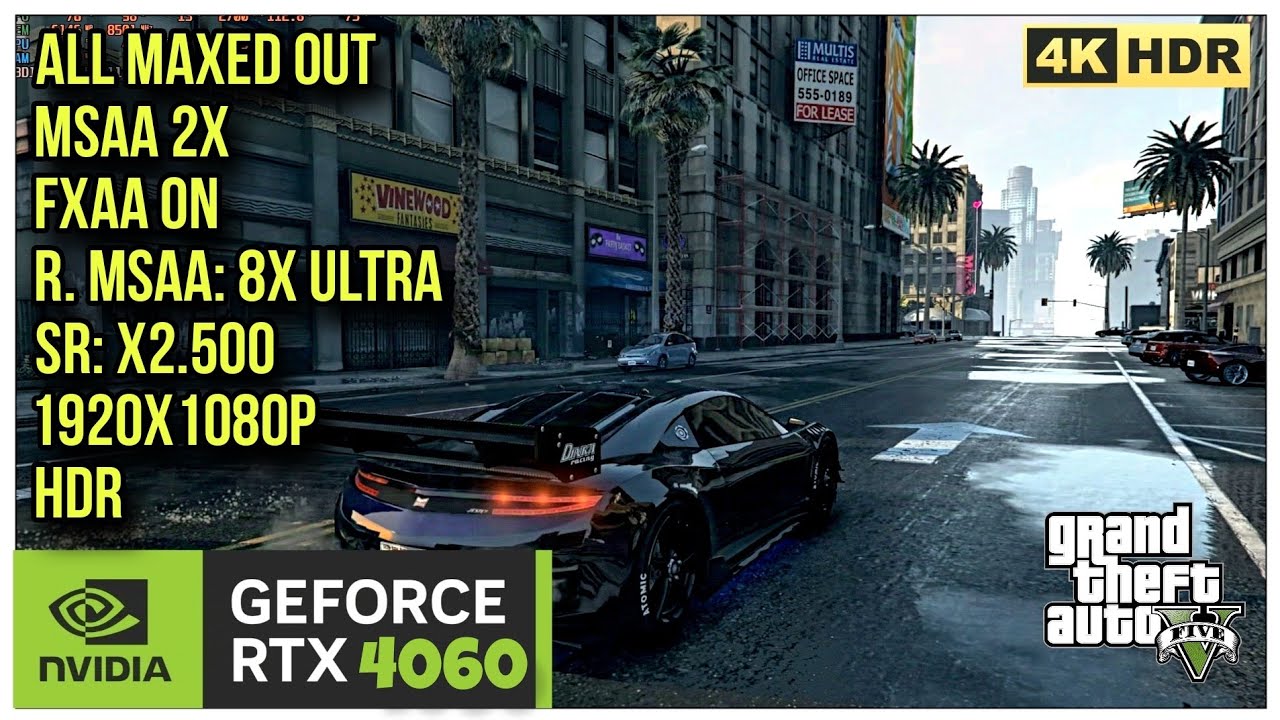

The Best Graphics Settings For GTA V Digital Trends Gta 5 Msaa . Ideal Info About Is Horizontal Up Or Down Blog Bennafi . GTA 5 With DLSS 3 5 Frame Generation Mod RTX 4070 1440p FXAA Vs MSAA . I MAXED OUT GTA V ON RTX 4060 I5 12400F MSAA FXAA Scale Resolution . RTX 2060 Laptop GTA V 4K 1440p MSAA X8 TXAA YouTube


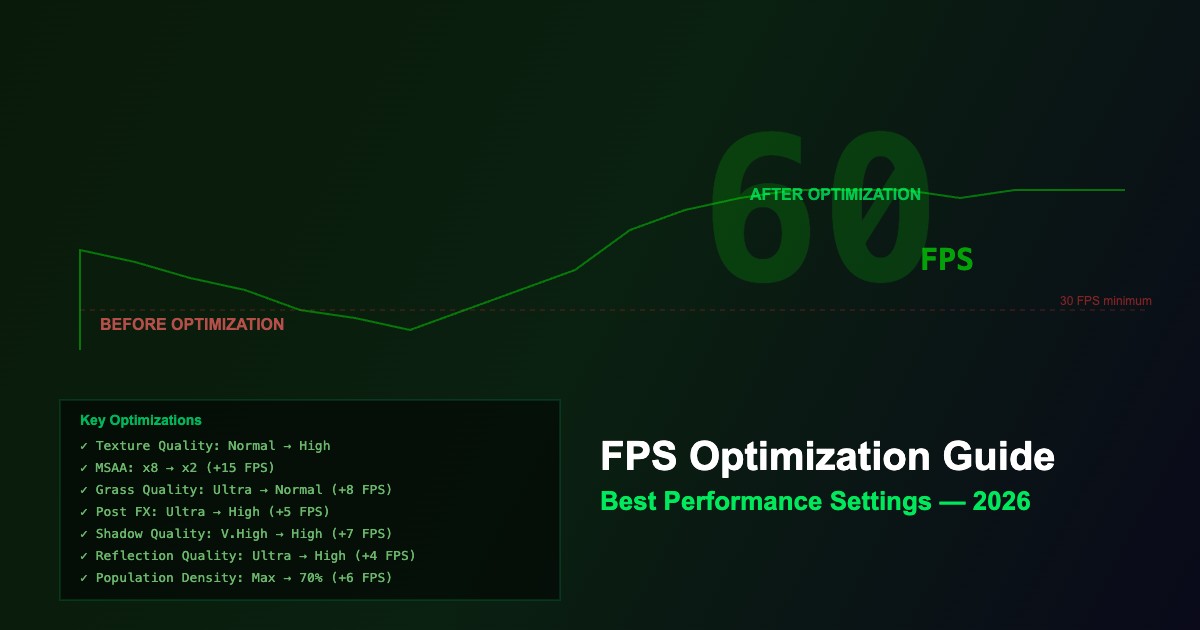
RX 580 Ryzen 5 5500 GTA V 1080p Very High High Settings MSAA . RX 6600 GTA 5 ULTRA MSAA 8X YouTube . AMD Has Finally Fixed Reflection MSAA ENB AO MSAA Bugs In GTA V . Finally The Guide For The Best Anti Aliasing For GTA V Return Of MSAA . GTA 5 FPS With Mods Best Performance Settings 2026 For
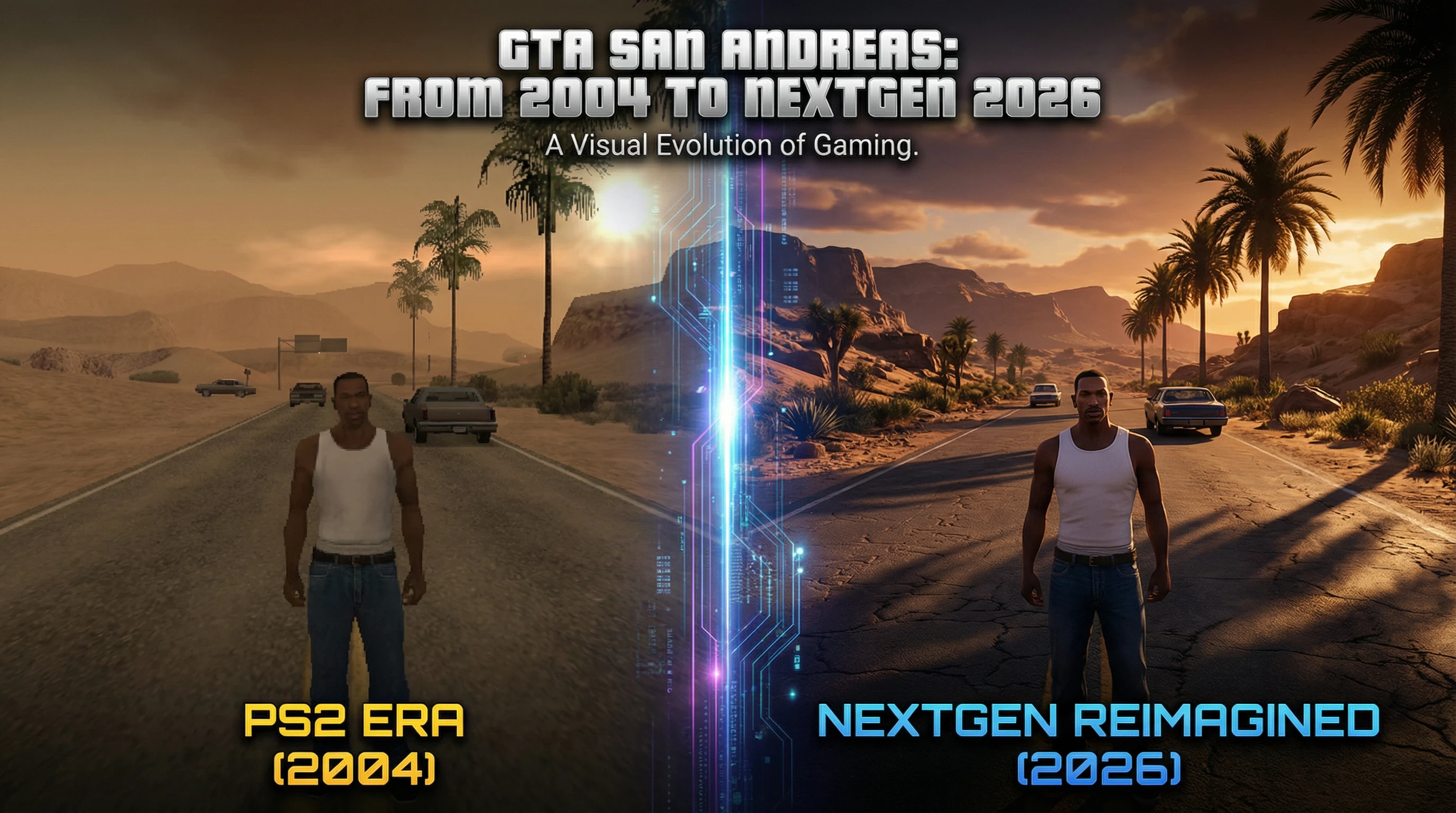
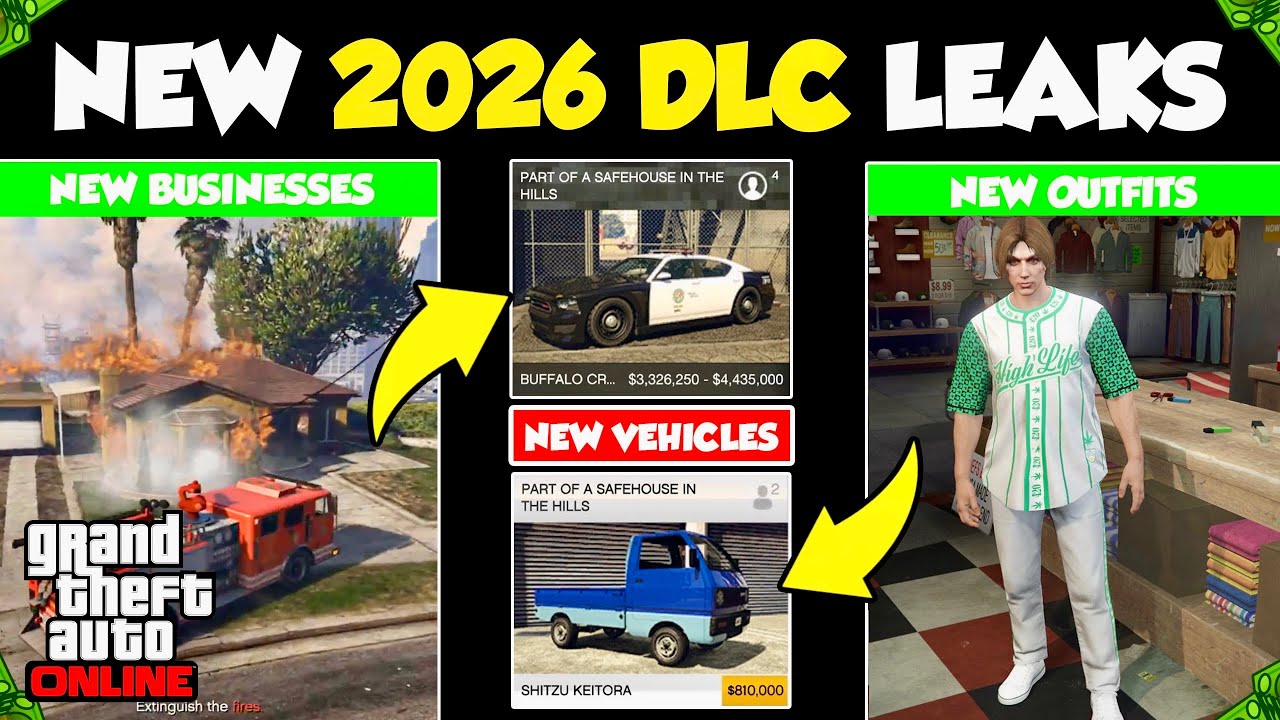


GTA San Andreas 2026 22bc1e7c17 Attachments Webp.webp. ALL Upcoming 2026 GTA 5 Online DLC Leaks New Businesses New Cars . BMW M2 CS 2026 V1 1 Para GTA 5 File 235615 Es . 2026 NEW YEAR PARTY GTA 5 SERIES YouTube . GTA VI Could Be Delayed To 2026 KitGuru Cropped 1920 1080 1343612


Gta 6 2025 Or 2026 Grand Theft Auto V Inc Update 4 MedienHome De Grand Theft Auto 8K GTAV Real Scaled . 2026 RAV4 GTA San Andreas File 233228 Uk . GTA 6 Auf 2026 Verschoben Neuer Best Tigt Mydealz Magazin Gta Vi 2026 Mai Gruende Warum 1200x675 . GTA 6 2026 GAMES GG GTA 6 Release Date Locked For May 2026 B69bceb5b4 . GTA 5 Cheats 2026 GTA 5 Cheats 2026

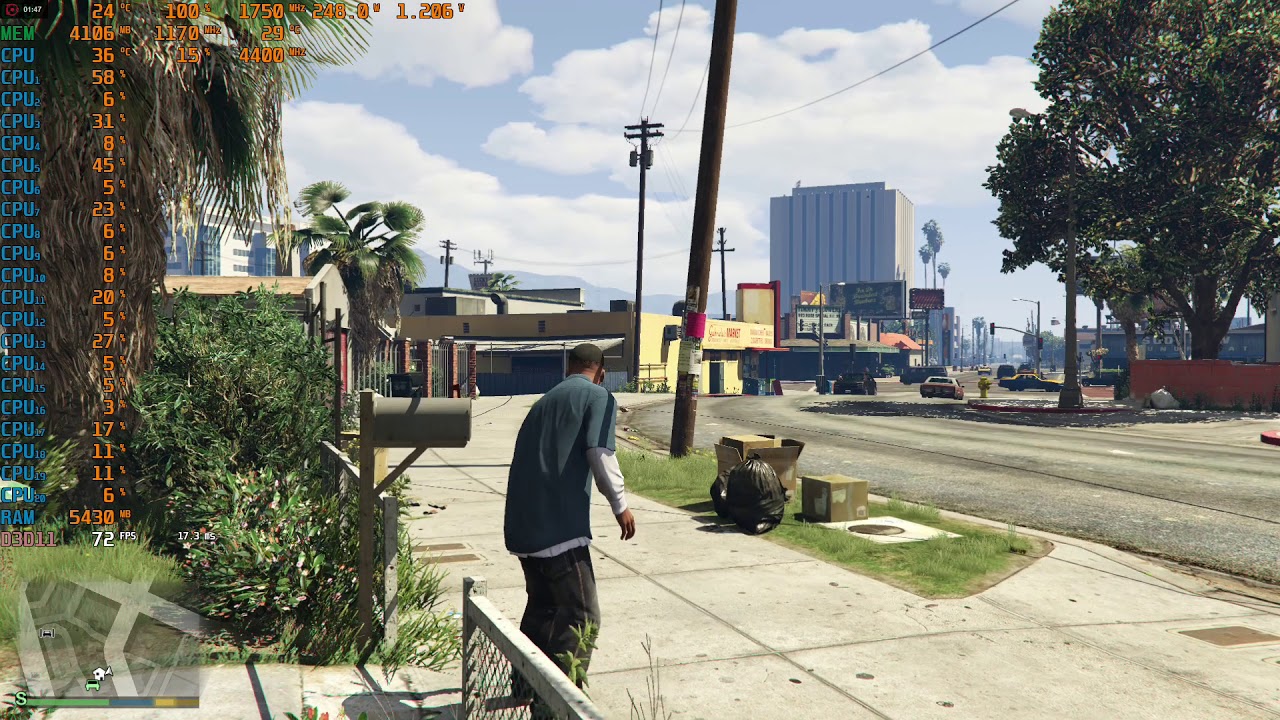


2026 Grand Theft Auto Universe Wiki Fandom 1200. GTA 5 NEW YEARS UPDATE 2026 DOUBLE MONEY Event Week Discounts . GTA V MSAA X2 YouTube . GTA V Rendering Issues With MSAA Enabled Issue 2525 Doitsujin Dxvk 156877101 34f0d89d 2d06 4e6b 8dc2 . GTA 5 MSAA 8x Vs 4x Vs 2x Vs Off YouTube



GTA V Rendering Issues With MSAA Enabled Issue 2525 Doitsujin Dxvk 156877103 Eb54b4c3 D470 48a5 A874 . Can You Play GTA V On Mac In 2026 Here S What You Need To Know TUAW Image 1 1 . GTA V Ray Tracing ON Vs OFF Detailed Comparison With FPS Maxed Out . GTA V Rendering Issues With MSAA Enabled Issue 2525 Doitsujin Dxvk 156877098 39373240 6b7d 4970 858e . GTA 6 2026 GTA5 Su GTA6 2026 1024x576