The Steam app is more than just a game launcher for the average gamer juggling work family and hobbies It is a comprehensive portal designed to optimize your gaming life from discovery to community This essential tool helps you manage your vast game library explore new titles connect with friends and grab the best deals without missing a beat In 2026 with over 87 percent of US gamers regularly enjoying interactive entertainment and spending an average of 10 plus hours a week gaming the Steam app stands as a crucial hub for PC players It streamlines everything ensuring you spend less time troubleshooting and more time enjoying your passion whether it is unwinding after a long day building skills with teammates or exploring new virtual worlds Its mobile companion also extends your access ensuring you are always connected to the latest updates and social interactions making it indispensable for the modern gamer seeking balance and fun
How do I set up my new Steam app account securely?
When creating a new Steam app account, prioritize security by choosing a strong, unique password. Immediately enable Steam Guard Mobile Authenticator through the Steam app on your smartphone. This two-factor authentication adds an essential layer of protection, requiring a code from your phone to log in, significantly reducing the risk of unauthorized access to your valuable game library and personal information. Do not share your login details with anyone.
What are the essential Steam app settings for optimal gaming performance?
For optimal Steam app performance, head to 'Settings' then 'Downloads' and clear your download cache regularly. Consider limiting bandwidth to prevent updates from impacting live gameplay. Also, in 'In-Game' settings, you can disable the Steam Overlay if it causes performance issues in certain games. Ensuring your graphics drivers are always up-to-date outside of Steam is also crucial for smooth gameplay.
How can I connect with other players and build a community within the Steam app?
The Steam app offers robust social tools. Use the 'Friends & Chat' panel to add friends, send messages, and invite them to games. Explore 'Groups' to find communities centered around specific games or interests. Participating in game forums via the 'Community' tab and utilizing the built-in voice chat features are excellent ways to socialize and find new teammates, fostering a richer, more connected gaming experience.
What should I do if my Steam app is not launching or games are crashing?
If your Steam app fails to launch or games crash, first try restarting your computer and the Steam client. If the problem persists, right-click the problematic game in your library, go to 'Properties,' 'Local Files,' and click 'Verify integrity of game files.' For client-wide issues, clear the download cache in Steam settings. As a last resort, reinstalling Steam after backing up your game folders might resolve deeper software conflicts.
How can the Steam app help me discover new games that fit my preferences?
The Steam app's discovery features are powerful. Utilize the 'Store' tab and explore personalized recommendations based on your play history and wishlisted titles. Browse categories, genres, and user tags, or delve into the 'Curators' section for recommendations from trusted sources. Checking the 'New & Trending' and 'Top Sellers' lists helps you stay current with popular titles and find games that align with current gaming trends and community interest.
Is the Steam app available on mobile, and what are its key features?
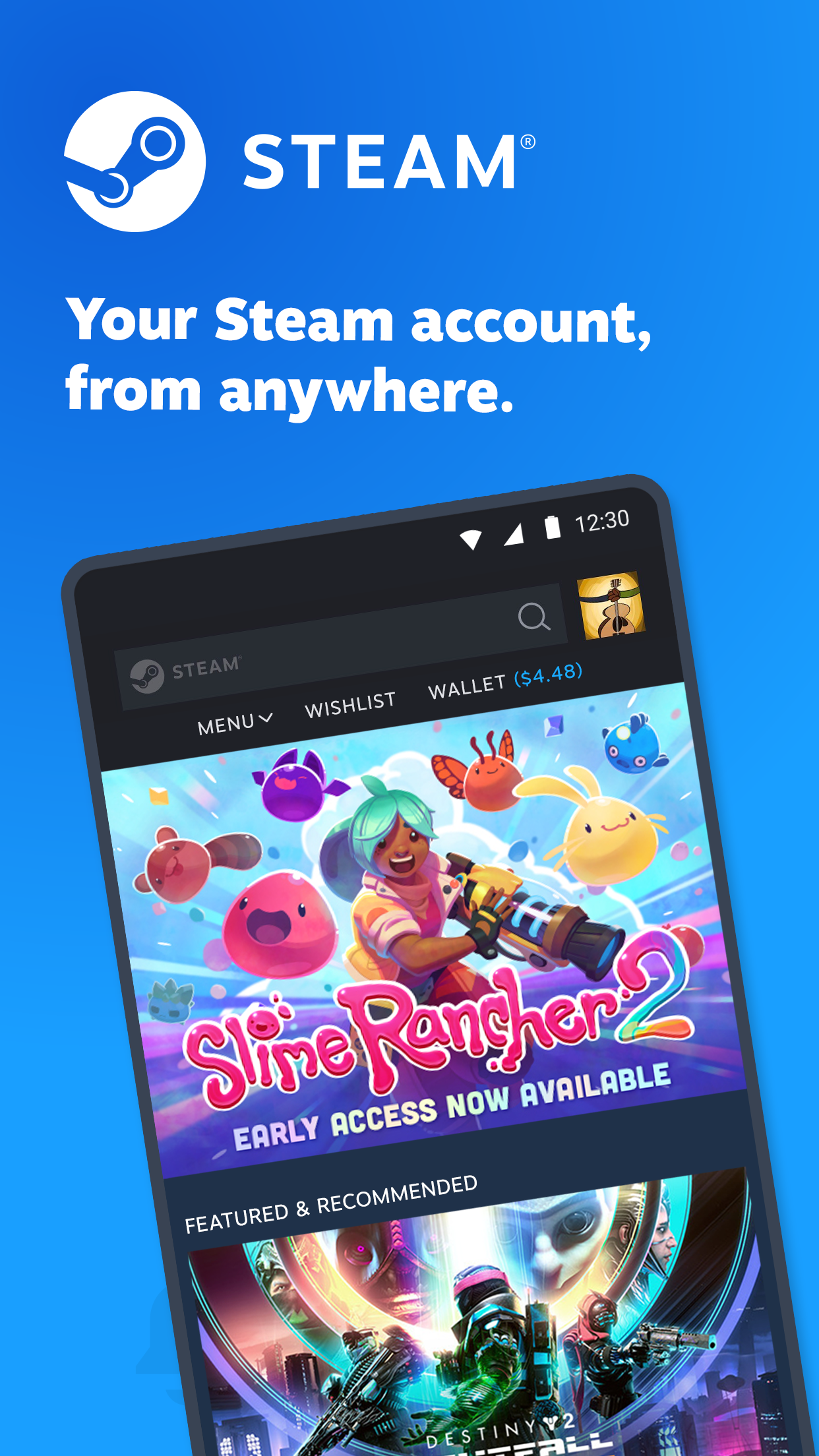
Yes, the Steam app is readily available on both iOS and Android devices. Its key features include secure Steam Guard authentication, remote game downloads to your PC, instant chat with Steam friends, and browsing the entire Steam store for new games and sales. This mobile companion ensures you can manage your gaming life and stay connected even when you're away from your computer, offering convenience for busy gamers.
What are the best strategies for managing my game library efficiently on the Steam app?
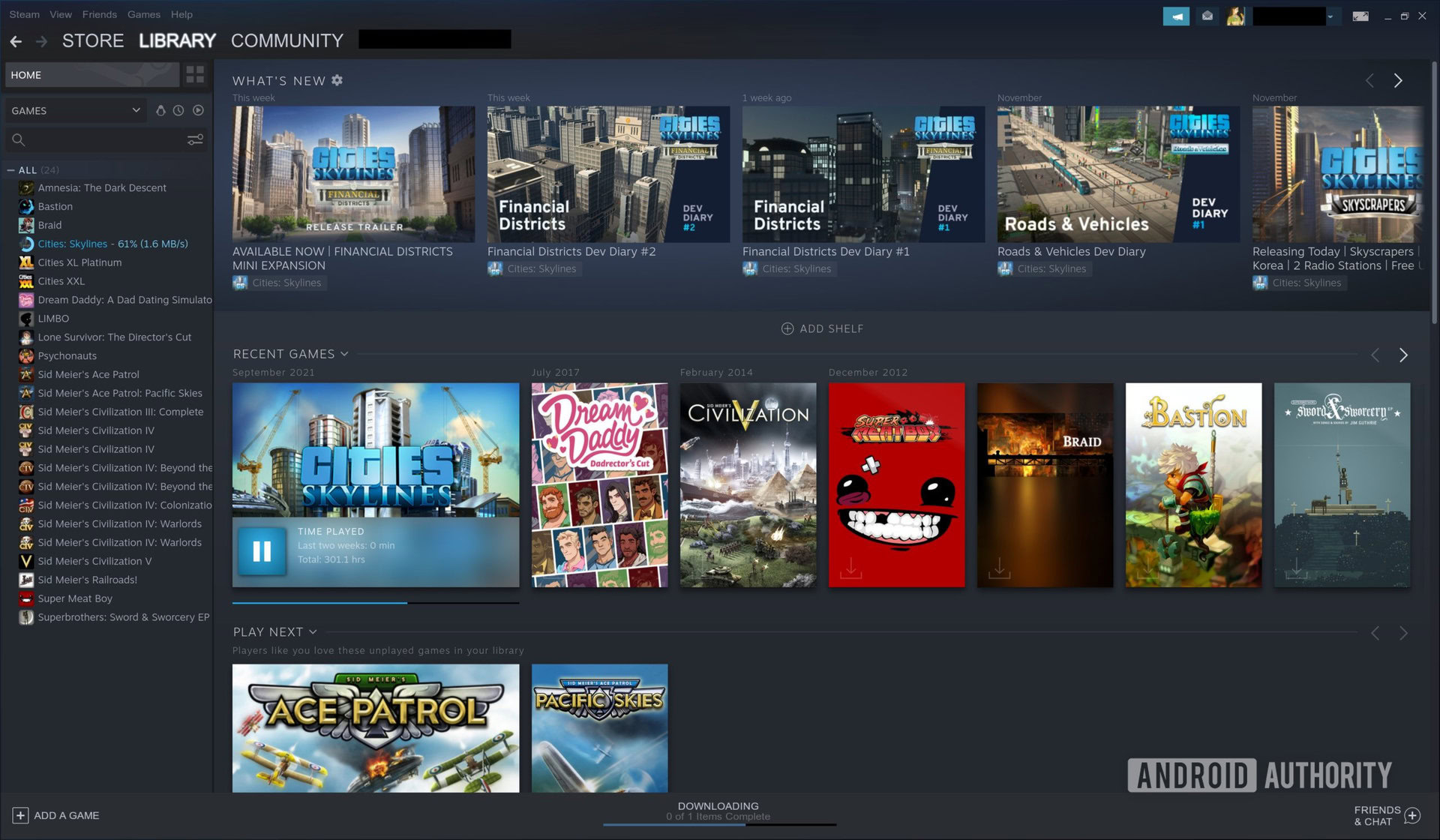
Efficient library management on the Steam app involves using 'Collections' to group your games. Create custom categories by genre, status (e.g., 'To Play,' 'Completed'), or multiplayer capability. Utilize dynamic collections for automatic sorting. Also, regularly uninstall games you no longer play to free up disk space and reduce clutter. The search bar and filters within your library are your best friends for quickly locating specific titles among hundreds.
Are you a gamer who loves diving into new worlds but struggles to find the time or keep up with the latest tech? Do you often feel overwhelmed by a sprawling game library or frustrated by performance hiccups that steal precious gaming minutes? You are not alone. In 2026, the average US gamer is around 36 years old, balancing careers, family, and life commitments while still finding over 10 hours a week to game. For this dedicated group, every moment counts, and the Steam app is designed to make those moments shine.
This article is your ultimate guide to mastering the Steam app, transforming it from a simple game launcher into a powerful tool that enhances your entire gaming experience. We will tackle common pain points, from setup and optimization to finding the best games for your limited time and connecting with your community. Get ready to unlock the full potential of your Steam app, ensuring more fun, less frustration, and a gaming life that fits perfectly into your busy schedule.
What Exactly is the Steam App and Why Do I Need It?
The Steam app, often simply called Steam, is Valve Corporation's digital distribution platform for video games. Beyond being a massive online store, it serves as a comprehensive ecosystem for PC gaming. Think of it as your all-in-one hub for purchasing, downloading, organizing, playing, and updating games, all while connecting with a global community. For the modern gamer, it is indispensable because it centralizes your entire PC game library, offers robust social features, provides automatic updates, and frequently hosts sales that offer incredible value for money. It is the backbone of PC gaming for an estimated 87% of US gamers.
How Do I Get Started with the Steam App Installation and Setup?
Getting your Steam app up and running is straightforward. First, visit the official Steam website and click 'Install Steam' in the top right corner. Download the installer for your operating system (Windows, macOS, or Linux). Once downloaded, run the installer and follow the on-screen prompts, choosing your preferred language and installation directory. After installation, you will be prompted to create a new Steam account or log in with an existing one. Remember to set up Two-Factor Authentication via the Steam Guard Mobile Authenticator for enhanced security.
How Can I Organize My Growing Game Library on the Steam App?
A sprawling game library can quickly become chaotic, but the Steam app offers excellent organizational tools. You can create custom categories, known as 'Collections,' to group your games by genre, completion status, or personal preference. Simply right-click on any game in your library and select 'Add to' then 'New Dynamic Collection' or 'New Collection.' Dynamic Collections automatically sort games based on tags and filters, while manual collections give you full control. Additionally, utilize the search bar and various filters (e.g., installed, ready to play, VR support) to quickly locate titles.
What Are the Best Ways to Optimize Steam App Performance on My PC?
Performance issues are a common headache for gamers. To optimize your Steam app, start by disabling unnecessary startup programs and background applications that consume system resources. Within Steam, navigate to 'Settings' then 'Downloads' and clear your download cache, which can sometimes resolve issues. Consider limiting bandwidth to prevent Steam updates from hogging your internet connection during gameplay. For specific games, right-click the title, go to 'Properties,' and explore options like 'Set Launch Options' to add commands that can improve performance. Keeping your GPU drivers updated is also paramount for smooth gameplay.
How Can I Find the Best Deals and Save Money on Games?
Value for money is crucial, and the Steam app is famous for its sales. To snag the best deals, regularly check the 'Store' tab and look for the 'Specials' section. Major seasonal sales (Summer Sale, Winter Sale, Halloween Sale, Spring Sale) offer significant discounts. Use the 'Wishlist' feature for games you are interested in; Steam will notify you when they go on sale. Consider using third-party sites like IsThereAnyDeal, which track Steam prices across various authorized retailers, though always purchase directly from Steam for maximum account security and game integration.
How Do I Connect with Friends and Build My Gaming Community on Steam?
Gaming is inherently social, with recent trends showing a surge in cooperative and community-focused titles. The Steam app makes connecting effortless. Use the 'Friends & Chat' window to see who is online, send messages, or invite them to games. You can join or create 'Groups' centered around specific games, interests, or communities. Voice chat functionality is built-in, and the 'Community' tab allows you to browse user-created content, guides, and forums for your favorite games. Many gamers also integrate Discord with Steam for enhanced communication and social hubs.
What Are the Benefits of the Steam App Mobile Companion?
The Steam app's mobile companion, available on iOS and Android, extends your PC gaming experience beyond your desk. It allows you to chat with friends, browse the store, remotely download games to your PC, and manage your Steam Guard Mobile Authenticator for account security. It is incredibly useful for busy gamers who might be on the go but want to check sale prices, respond to messages, or start a large game download before they even get home. This connectivity ensures you are always just a tap away from your gaming world.
When Should I Consider Upgrading My Hardware for Better Steam App Performance?
Hardware upgrades can significantly enhance your Steam app experience, especially with demanding new titles. If you are experiencing consistently low frame rates, long loading times, or crashes in multiple games, it is likely time to consider an upgrade. Focus on your Graphics Processing Unit (GPU) first, as it has the biggest impact on gaming performance. Next, consider your Central Processing Unit (CPU) and Random Access Memory (RAM). Aim for at least 16GB of RAM as a baseline in 2026. For budget-conscious gamers, consider incremental upgrades during sales or look for reliable refurbished components. Balance is key: a powerful GPU might be bottlenecked by an older CPU.
How Do I Troubleshoot Common Steam App Issues Like Downloads and Crashes?
Encountering issues with your Steam app can be frustrating, but many common problems have simple solutions. For download issues, try changing your download region in Steam settings ('Downloads' tab) to a different, less congested server. Clearing your download cache (also in 'Downloads') often helps. If games are crashing, first verify the integrity of game files by right-clicking the game in your library, selecting 'Properties,' then 'Local Files,' and 'Verify integrity of game files.' Ensure your graphics drivers are updated. For persistent issues, a full reinstall of Steam can sometimes resolve deeper conflicts, but always back up your game files first.
What Are Some Must-Play Games for Busy Gamers on the Steam App?
For gamers balancing life, titles that offer flexible playtimes, quick gratification, or satisfying cooperative experiences are ideal. Cozy games like Stardew Valley or Animal Crossing-style titles provide relaxation without high stakes. Social games such as Among Us, Phasmophobia, or Helldivers 2 are excellent for quick, fun sessions with friends. Free-to-play options like Apex Legends or Genshin Impact offer extensive content without an upfront cost. Explore indie gems like Hades for roguelike replayability or Slay the Spire for strategic card battles. Many major titles also offer compelling single-player campaigns that can be enjoyed in shorter bursts.
Conclusion
The Steam app is an unparalleled gateway to the world of PC gaming, especially for the modern gamer who values efficiency, community, and relaxation. By understanding its features, optimizing your settings, and leveraging its vast resources, you can transform your gaming sessions from potential headaches into pure enjoyment. From seamless game management and performance tweaks to connecting with friends and finding incredible deals, the Steam app empowers you to make the most of your passion. Now, go forth and game smarter, not harder!
What is your biggest gaming challenge with the Steam app? Comment below and let us help each other!
FAQ Section
How do I enable Steam Guard Mobile Authenticator?
To enable Steam Guard, download the Steam Mobile App, log in, and tap the 'Steam Guard' menu option. Select 'Add Authenticator' and follow the prompts to link your phone. This provides two-factor authentication, enhancing your account security significantly.
Can I play Steam games offline?
Yes, you can play many Steam games offline. To do so, launch Steam while connected to the internet, then go to 'Steam' in the top menu and select 'Go Offline.' Ensure the games you wish to play offline are fully updated and have been launched at least once in online mode.
What is Steam Family Sharing?
Steam Family Sharing allows you to share your game library with up to five other Steam accounts on up to ten authorized devices. While one person is playing a shared game, others cannot access the library, but it is a great way to share titles with family members.
How do I refund a game on Steam?
Steam offers refunds for games if requested within 14 days of purchase and if the game has been played for less than two hours. Go to 'Help' then 'Steam Support,' select the relevant game, and follow the refund request process. Refunds are typically processed within 7 days.
What are Steam Points and how do I use them?
Steam Points are earned by making purchases on the Steam Store. You can spend them in the Steam Points Shop to customize your profile with backgrounds, avatars, and mini-profile frames, or to award community content like reviews and screenshots.
How can I back up my Steam games?
You can back up your Steam games by navigating to 'Steam' in the client's top left corner, selecting 'Backup and Restore Games,' and following the instructions. Alternatively, you can manually copy game folders from your Steamapps common directory.
Effortless Game Management Extensive Library Access Social Connectivity Deals and Sales Performance Optimization Cross-Platform Mobile Access Problem Solving Focus
35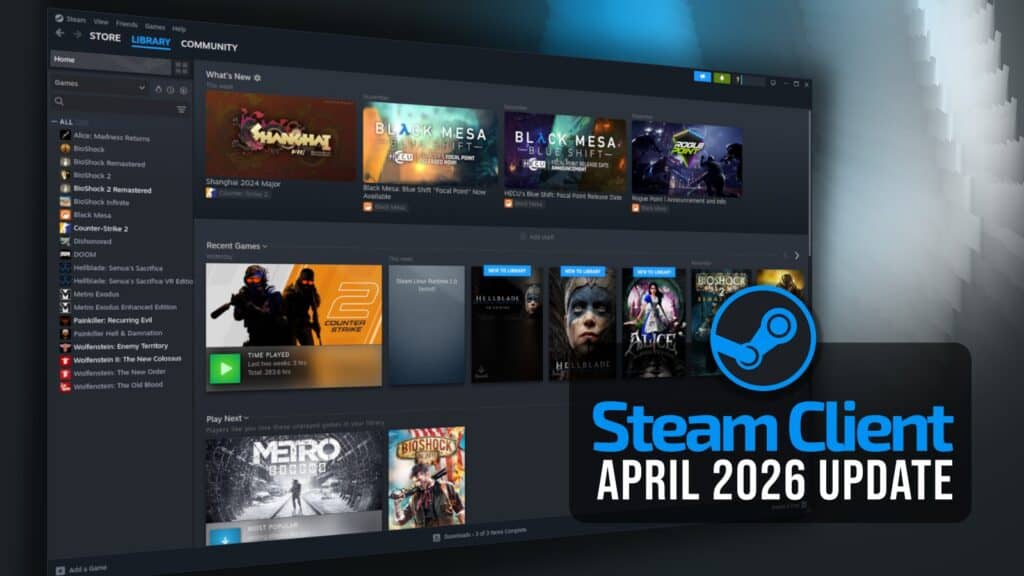

Steam April 2026 Client Update Adds Remote Downloads Management Steam Client April 2026 1024x576 . Steam Sales 2026 Calendar Full Dates Best CD Key Deals AllKeyShop Com All Steam Events 2026. Steam Sale 2026 Key Dates You Need To Know LevelUpTalk Steam Sale Schedule 2026 08 27 2025 7c35051e 2c22 4093 96f1. Steam Sales Dates For The Second Half Of 2026 Announced Steam Sales Dates Second Half Of Year 2026 VGNW 1536x864 . New Steam Features For 2026 Steam Features 2026 What S New Banner.webp


Check That You Re Ready For Invasive DRM With New Feature Built Right . Steam Next Fest February 2026 The 22 Best Game Demos The Best Steam Next Fest Demos 2026 The Punished Backlog Order 2 300x162 . Steam 2026 Ndirimleri Ve Tarihleri Oyunfor . Steam 2026 2983405 . The Most Played Games On Steam For 2026 So Far Cheat Code Central Most Played Games Steam 2026 1536x876



2026 Steam Ndirimleri Ve Etkinlik Takvimi2026 N N Lk Yar S Nda Steam 1 780x470 . Nuova Steam Machine 2026 Giochi Compatibili E Data Di Nuova Steam Machine 2026.webp. Is De Steam App Veilig Voor Kinderen Wat Doet De Steam App En Hoe What Is Steam App 1024x580 . 10 Best Deals In The 2026 Steam Spring Sale Ranked Steam Spring Sale Best Deals 2026 . Steam Voici La Liste Des 29 P Riodes De Promotions De L Ann E 2026 Steam Soldes 2026

Steam Einl Sen So Es 2026 Guide Lotkeys Lotkeys Blog Steam Xr9p .webp. When Is The Next Steam Sale Every 2026 Steam Sale Date Confirmed Beebom Steam MacOS App Beta . Steam Windows App Steam Support Steam LZJQL Steam Library Scaled . Steam Shares Full Events Schedule For 2026 FullCleared Voting Now Open For The 2025 Steam Awards 1280x720 . Steam 2026 Battlepass Steam


Steam Sales 2026 Calendar Full Dates Best CD Key Deals AllKeyShop Com All Steam Events 2026 1.webp. How To Play Steam Games On Your Android Phone Or Tablet Steam App Jpg . Steam Next Fest February 2026 The Top 50 Most Played Demos Revealed Steam Header 1024x576 . Steam Mobile App Store 1200x630wa . Valve Unveils New Steam Machine Controller And Steam Frame For 2026 Image 2025 11
Steam Libera Agenda De Eventos E Promo Es Do Primeiro Semestre De 2026 Steam . Steam Starts 2026 With 4 New FREE Games No Strings Attached Steam Logo In Forest . 5 Essential Steam Deck Apps You Should Be Using In 2026 L Intro 1765909512 . Valve S Steam Controller Has A Launch Date Everything On Release Steam Controller 2026 1 . Steam Machine 2026 Why Valve Needs Retail Shelves The Outerhaven Steam Machine 2026 Image 01

:strip_icc():watermark(kly-media-production/assets/images/watermarks/liputan6/watermark-color-landscape-new.png,1180,20,0)/kly-media-production/medias/5535685/original/040139800_1774087096-Steam_Spring_Sale_2026_01.jpeg)
Kalender Lengkap Event Steam 2026 Diskon Besar Dan Festival Game Favorit Steam Events 2 Q82 W2560 H 74ce0.webp. Steam 3 10 0 APK Download By Valve Corporation APKMirror Steam . How To Download Steam For PC Mac Or Mobile 2026 Guide How To Download Steam Thumbnail . Steam Spring Sale 2026 Dimulai Banyak Game PC Dan DLC Dipangkas Harga 040139800 1774087096 Steam Spring Sale 2026 01 . Steam 2026 4 New Free To Play Games Available Now AllKeyShop Com Showcase Steam Free Games 2026 Indie F2p Card Roguelike Sci Fi